

NVIDIA GPU Driver Custom Resource Definition#
Overview of the GPU Driver Custom Resource Definition#
You can create one or more instances of an NVIDIA driver (NVIDIADriver) custom resource
to specify the NVIDIA GPU driver type and driver version to configure on specific nodes.
You can specify labels in the node selector field to control which NVIDIA driver configuration is applied to specific nodes.
Driver Management Modes#
To use NVIDIA driver custom resources with a cluster policy custom resource, set
spec.driver.useNvidiaDriverCRD to true.
The cluster policy controller continues to manage the other GPU Operator operands, but delegates
driver management to the NVIDIA driver custom resource controller.
If spec.driver.useNvidiaDriverCRD is false, the Operator does not reconcile
NVIDIA driver custom resources.
You can migrate a Helm installation from managing the driver with the cluster policy custom resource to managing it with NVIDIA driver custom resources. For the supported procedure, refer to Migrating from Cluster Policy Driver Management.
Comparison: Managing the Driver with CRD versus the Cluster Policy#
Before the introduction of the NVIDIA GPU Driver custom resource definition, you managed the driver by modifying the driver field and subfields of the cluster policy custom resource definition.
The key differences between the two approaches are summarized in the following table.
Cluster Policy CRD |
NVIDIA Driver CRD |
|---|---|
|
|
Driver Daemon Sets#
The NVIDIA GPU Operator starts a driver daemon set for each NVIDIA driver custom resource and each operating system version.
For example, if your cluster has one NVIDIA driver custom resource that specifies a 580 branch GPU driver and some worker nodes run Ubuntu 22.04 and other worker nodes run Ubuntu 24.04, the Operator starts two driver daemon sets. One daemon set configures the GPU driver on the Ubuntu 22.04 nodes and the other configures the driver on the Ubuntu 24.04 nodes. All the nodes run the same 580 branch GPU driver.
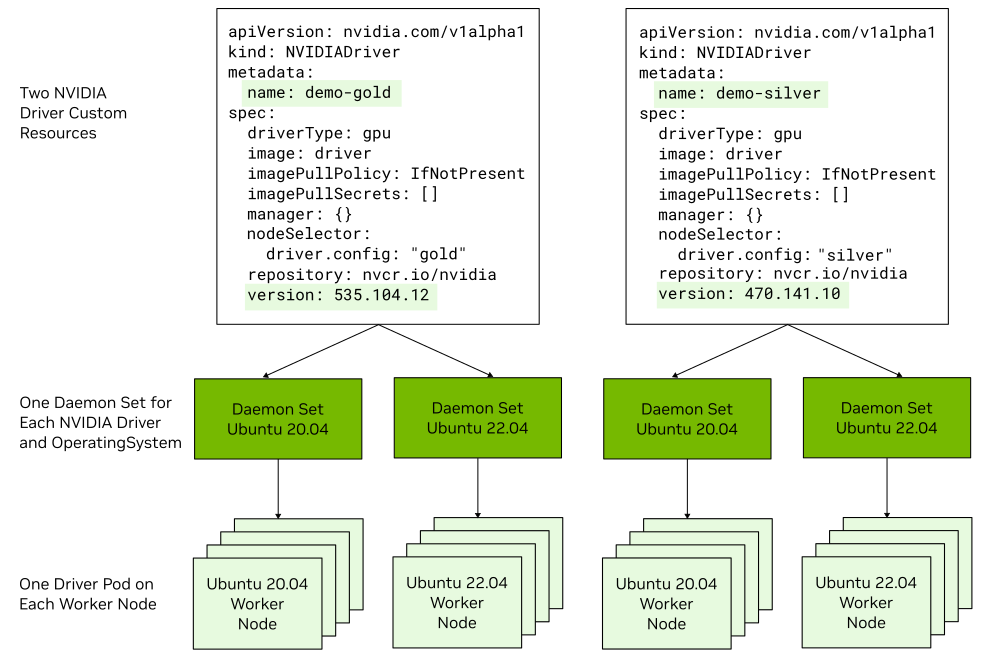
If you choose to use precompiled driver containers, the Operator starts a driver daemon set for each Linux kernel version.
For example, if some nodes run Ubuntu 22.04 and the 5.15.0-84-generic kernel, and other nodes run the 5.15.0-78-generic kernel, then the Operator starts two daemon sets.
About the Default NVIDIA Driver Custom Resource#
By default, the Helm chart configures a default NVIDIA driver custom resource during installation.
The resource has spec.default: true and does not include a node selector.
It acts as a fallback and applies to every GPU node that does not match the node selector of another
NVIDIA driver custom resource.
The Operator starts a driver daemon set and pods for each operating system version in your cluster.
You can use the default resource and additional user-defined resources at the same time.
A user-defined resource takes precedence on nodes that match its node selector, and the default resource
continues to manage the remaining GPU nodes.
User-defined resources must not select the same node.
If they do, the affected resources report notReady with a ConflictingNodeSelector condition,
and the Operator retains the existing driver ownership labels until you resolve the conflict.
Only one NVIDIA driver custom resource can have spec.default: true.
A default resource cannot specify spec.nodeSelector because it would not be able to act as a fallback.
If more than one default resource exists, the Operator marks the affected resources notReady with a
ReconcileFailed condition and does not change the existing driver ownership labels on nodes.
Delete or update the extra default resource to resume reconciliation.
To prevent the Helm chart from creating the default resource, specify the
--set driver.nvidiaDriverCRD.deployDefaultCR=false argument when you install or upgrade the Operator.
This setting can help you meet any of the following goals:
You will add user-defined resources that select every GPU node that the Operator should manage.
You will add a default resource–by specifying
spec.default: true–as a fallback.Or, leaving some GPU nodes without an Operator-managed driver is intentional.
Note
A user-defined NVIDIADriver custom resource without a node selector matches all GPU nodes.
Such a resource takes precedence over the default custom resource and conflicts with any other
that selects one of the same nodes.
Feature Compatibility#
- Driver type
Each NVIDIA driver custom resource specifies the driver type and is one of
gpu,vgpu, orvgpu-host-manager. You can run the data-center driver (gpu) on some nodes and the vGPU driver on other nodes.- GPUDirect RDMA and GPUDirect Storage
Each NVIDIA driver custom resource can specify how to configure GPUDirect RDMA and GPUDirect Storage (GDS). Refer to GPUDirect RDMA and GPUDirect Storage for the platform support and prerequisites.
- GDRCopy
Each NVIDIA driver custom resource can enable the GDRCopy sidecar container in the driver pod.
- Precompiled and signed drivers
You can run the default driver type that is compiled when the driver pod starts on some nodes and precompiled driver containers on other nodes. The Limitations and Restrictions for precompiled driver containers apply.
- Preinstalled drivers on nodes
If a node has an NVIDIA GPU driver installed in the operating system, then no driver container runs on the node.
- Support for X86_64 and ARM64
Each daemon set can run pods and driver containers for the X86_64 and ARM64 architectures. Refer to the NVIDIA GPU Driver tags web page to determine which driver version and operating system combinations support both architectures.
- Custom Driver Parameters
Each NVIDIA driver custom resource can specify custom kernel module parameters by using a ConfigMap. For more information, refer to Customizing NVIDIA GPU Driver Parameters during Installation.
Migrating from Cluster Policy Driver Management#
You can migrate an existing Helm installation to NVIDIA driver custom resource management through the controlled driver upgrade flow. During the migration, the Operator assigns each GPU node to an NVIDIA driver custom resource and uses the driver upgrade controller to replace the previous cluster policy managed driver pod on each node.
When you migrate from a GPU Operator release earlier than v26.7.0, perform two Helm upgrades:
First, upgrade to v26.7.0 while retaining cluster policy driver management.
Afterward, upgrade to the same release again. This time, enable NVIDIA driver custom resource management.
The exact commands and arguments are shown in the following procedure.
This sequence starts the controller that supports controlled migration before changing driver ownership. Do not upgrade from an earlier release and enable NVIDIA driver custom resource management in the same Helm operation because the old controller can remove the existing driver pods before the new controller can take ownership.
Before you begin, verify the following requirements:
The Helm values under
driverrepresent the driver configuration that you want the chart-created default NVIDIA driver custom resource to use. The Operator does not copy changes made directly to thespec.driverfield of the cluster policy custom resource into the new resource.Any existing non-default NVIDIA driver custom resources have non-overlapping node selectors. These resources become active when you enable NVIDIA driver custom resource management.
driver.upgradePolicy.autoUpgradeistrueso that the upgrade controller can perform the controlled replacement of the previous driver pods. Nodes with thenvidia.com/gpu-driver-upgrade.skip=truelabel are not migrated until you remove the label.Your workloads can tolerate the disruption configured by the driver upgrade policy. For more information, refer to GPU Driver Upgrades.
Identify the Helm release name:
$ helm list -n gpu-operatorIf your current GPU Operator release is earlier than v26.7.0 and the cluster does not already use
NVIDIADriverresources, upgrade to the target release while retaining cluster policy driver management:$ helm upgrade <release-name> nvidia/gpu-operator \ -n gpu-operator \ --version=v26.7.0 \ --reuse-values \ --disable-openapi-validation \ --set operator.upgradeCRD=true \ --set driver.nvidiaDriverCRD.enabled=false \ --set driver.nvidiaDriverCRD.deployDefaultCR=false \ --wait
This operation updates the custom resource definitions, starts the controller that supports controlled migration, and leaves the existing cluster policy managed driver pods in place. For more information about manually updating the custom resource definitions instead of using the Helm hook, refer to Upgrading the GPU Operator.
Wait for the cluster policy custom resource to return to the
readystate.Upgrade the Helm release and enable NVIDIA driver custom resource management:
$ helm upgrade <release-name> nvidia/gpu-operator \
    -n gpu-operator \
    --version=v26.7.0 \
    --reuse-values \
    --set driver.nvidiaDriverCRD.enabled=true \
    --set driver.nvidiaDriverCRD.deployDefaultCR=true \
    --set driver.upgradePolicy.autoUpgrade=true \
    --wait
The chart sets
spec.driver.useNvidiaDriverCRDtotruein the cluster policy custom resource and creates a default NVIDIA driver custom resource from the Helm driver values. The cluster policy custom resource continues to manage the other GPU Operator operands. If the controlled rollout can exceed the default Helm timeout, specify an appropriate duration with the--timeoutoption.Confirm that exactly one default resource exists:
$ kubectl get nvidiadriversThe output includes
truein theDEFAULTcolumn for the chart-created resource. The resource can reportnotReadywhile the migration is in progress.Monitor node ownership and the controlled upgrade:
$ kubectl get nodes -l nvidia.com/gpu.present=true \
    -L nvidia.com/gpu-operator.driver.owner \
    -L nvidia.com/gpu-driver-upgrade-state
The migration is complete when each managed node has an NVIDIA driver owner and reports
upgrade-done, and the NVIDIA driver and cluster policy custom resources reportready.
After the migration, you can create additional NVIDIA driver custom resources with node selectors.
Those resources take ownership of their matching nodes, while the default resource remains the
fallback for the other GPU nodes.
If you do not want the upgrade controller to manage later driver updates automatically, set
driver.upgradePolicy.autoUpgrade to false in the Helm values for the chart-created default
resource after the migration completes.
For a user-created resource, set spec.upgradePolicy.autoUpgrade to false.
About the NVIDIA Driver Custom Resource#
An instance of the NVIDIA driver custom resource represents a specific NVIDIA GPU driver type and driver version to install and manage on nodes.
apiVersion: nvidia.com/v1alpha1
kind: NVIDIADriver
metadata:
  name: demo-gold
spec:
  driverType: gpu
  gdrcopy:
    enabled: false
    repository: nvcr.io/nvidia/cloud-native
    image: gdrdrv
    version: v2.4.1
    imagePullPolicy: IfNotPresent
    imagePullSecrets: []
    env: []
    args: []
  image: driver
  imagePullPolicy: IfNotPresent
  imagePullSecrets: []
  kernelModuleType: auto
  manager: {}
  nodeSelector:
    driver.config: "gold"
  rdma:
    enabled: false
    useHostMofed: false
  gds:
    enabled: false
  repository: nvcr.io/nvidia
  startupProbe:
    failureThreshold: 120
    initialDelaySeconds: 60
    periodSeconds: 10
    timeoutSeconds: 60
  usePrecompiled: false
  version: 580.126.20
The following table describes some of the fields in the custom resource.
Field |
Description |
Default Value |
|---|---|---|
|
Specifies the name of the NVIDIA driver custom resource. |
None |
|
Specifies a map of key and value pairs to add as custom annotations to the driver pod. |
None |
|
Specifies whether the resource is the fallback driver configuration for GPU nodes that do not
match a non-default resource.
Only one resource can be the default, and a default resource cannot specify |
|
|
Specifies one of the following:
|
|
|
Specifies environment variables to pass to the driver container. |
None |
|
Specifies whether to deploy the GDRCopy Driver.
When set to |
|
|
Specifies whether to enable GPUDirect Storage. |
|
|
Specifies the driver container image name. |
|
|
Specifies the policy for kubelet to download the container image. Refer to the Kubernetes documentation for image pull policy. |
Refer to the Kubernetes documentation. |
|
Specifies the credentials to provide to the registry if the registry is secured. |
None |
|
Specifies the type of the NVIDIA GPU Kernel modules to use.
Valid values are
|
|
|
Specifies a map of key and value pairs to add as custom labels to the driver pod. |
None |
|
Specifies one or more node labels to match.
The driver container is scheduled to nodes that match all the labels.
Do not specify the Operator-managed |
None. When you do not specify this field on a non-default resource, the resource selects all GPU nodes. |
|
Specifies how the upgrade controller upgrades the nodes managed by this resource. Each NVIDIA driver custom resource can have a different policy. Refer to GPU Driver Upgrades. |
Automatic upgrades are enabled, with one node upgraded at a time and a maximum of 25 percent of the managed nodes unavailable. |
|
Specifies the priority class for the driver pod. |
|
|
Specifies whether to enable GPUDirect RDMA. |
|
|
Specifies the container registry that contains the driver container. |
|
|
This field is deprecated as of v25.3.0 and will be ignored. Use |
|
|
Specifies a set of tolerations to apply to the driver pod. |
None |
|
When set to |
|
|
Specifies the GPU driver version to install.
For a data-center driver, specify a value like |
Refer to the GPU Operator Component Matrix. |
Installing the NVIDIA GPU Operator#
Perform the following steps to install the GPU Operator and use the NVIDIA driver custom resources.
Optional: If you want to run more than one driver type or version in the cluster, label the worker nodes to identify the driver type and version to install on each node:
Example
$ kubectl label node <node-name> --overwrite driver.version=580.126.20
To use a mix of driver types, such as vGPU, label nodes for the driver type.
To use a mix of driver versions, label the nodes for the different versions.
To use a mix of conventional drivers and precompiled driver containers, label the nodes for the different types.
Install the Operator.
Add the NVIDIA Helm repository:
$ helm repo add nvidia https://helm.ngc.nvidia.com/nvidia \
    && helm repo update
Install the Operator and specify at least the
--set driver.nvidiaDriverCRD.enabled=trueargument:$ helm install --wait --generate-name \ -n gpu-operator --create-namespace \ nvidia/gpu-operator \ --version=v26.7.0 \ --set driver.nvidiaDriverCRD.enabled=true
By default, Helm configures a
defaultNVIDIA driver custom resource during installation. To prevent configuring the default custom resource, also specify--set driver.nvidiaDriverCRD.deployDefaultCR=false. You do not need to disable or delete the default resource before you add non-default resources with node selectors.
Apply NVIDIA driver custom resources manifests to install the NVIDIA GPU driver version, type, and so on for your nodes. Refer to the sample manifests.
Sample NVIDIA Driver Manifests#
One Driver Type and Version on All Nodes#
Optional: Remove previously applied node labels.
Create a file, such as
nvd-all.yaml, with contents like the following:apiVersion: nvidia.com/v1alpha1 kind: NVIDIADriver metadata: name: nvidiadriver-sample spec: # use pre-compiled packages for NVIDIA driver installation. usePrecompiled: false driverType: gpu repository: nvcr.io/nvidia image: driver version: "580.126.20" imagePullPolicy: IfNotPresent imagePullSecrets: [] nodeSelector: {} manager: {} rdma: enabled: false useHostMofed: false gds: enabled: false # Private mirror repository configuration repoConfig: name: "" # custom ssl key/certificate configuration certConfig: name: "" # vGPU licensing configuration licensingConfig: secretName: "" nlsEnabled: true # vGPU topology daemon configuration virtualTopologyConfig: name: "" # kernel module configuration for NVIDIA driver kernelModuleConfig: name: ""
Apply the manifest:
$ kubectl apply -n gpu-operator -f nvd-all.yamlOptional: Monitor the progress:
$ kubectl get events -n gpu-operator --sort-by='.lastTimestamp'
Multiple Driver Versions#
Label the nodes.
On some nodes, apply a label like the following:
$ kubectl label node <node-name> --overwrite driver.config="gold"
On other nodes, apply a label like the following:
$ kubectl label node <node-name> --overwrite driver.config="silver"
Create a file, such as
nvd-driver-multiple.yaml, with contents like the following:apiVersion: nvidia.com/v1alpha1 kind: NVIDIADriver metadata: name: demo-gold spec: driverType: gpu env: [] image: driver imagePullPolicy: IfNotPresent imagePullSecrets: [] manager: {} nodeSelector: driver.config: "gold" repository: nvcr.io/nvidia version: "580.126.20" --- apiVersion: nvidia.com/v1alpha1 kind: NVIDIADriver metadata: name: demo-silver spec: driverType: gpu env: [] image: driver imagePullPolicy: IfNotPresent imagePullSecrets: [] manager: {} nodeSelector: driver.config: "silver" repository: nvcr.io/nvidia version: "470.141.10"
Apply the manifest:
$ kubectl apply -n gpu-operator -f nvd-driver-multiple.yamlOptional: Monitor the progress:
$ kubectl get events -n gpu-operator --sort-by='.lastTimestamp'
One Precompiled Driver Container on All Nodes#
Optional: Remove previously applied node labels.
Create a file, such as
nvd-precompiled-all.yaml, with contents like the following:apiVersion: nvidia.com/v1alpha1 kind: NVIDIADriver metadata: name: demo-precomp-all spec: driverType: gpu env: [] image: driver imagePullPolicy: IfNotPresent imagePullSecrets: [] manager: {} nodeSelector: {} repository: nvcr.io/nvidia resources: {} usePrecompiled: true version: "580"
Tip
Because the manifest does not include a
nodeSelectorfield, the driver custom resource selects all nodes in the cluster that have an NVIDIA GPU.Apply the manifest:
$ kubectl apply -n gpu-operator -f nvd-precompiled-all.yamlOptional: Monitor the progress:
$ kubectl get events -n gpu-operator --sort-by='.lastTimestamp'
Precompiled Driver Container on Some Nodes#
Label the nodes like the following sample:
$ kubectl label node <node-name> --overwrite driver.precompiled="true"
$ kubectl label node <node-name> --overwrite driver.version="580"
Create a file, such as
nvd-precomiled-some.yaml, with contents like the following:apiVersion: nvidia.com/v1alpha1 kind: NVIDIADriver metadata: name: demo-precomp spec: driverType: gpu env: [] image: driver imagePullPolicy: IfNotPresent imagePullSecrets: [] manager: {} nodeSelector: driver.precompiled: "true" driver.version: "580" repository: nvcr.io/nvidia resources: {} usePrecompiled: true version: "580"
Apply the manifest:
$ kubectl apply -n gpu-operator -f nvd-precompiled-some.yamlOptional: Monitor the progress:
$ kubectl get events -n gpu-operator --sort-by='.lastTimestamp'
Upgrading the NVIDIA GPU Driver#
To upgrade a driver managed by an NVIDIA driver custom resource, update the spec.version field.
The upgrade controller applies the resource’s spec.upgradePolicy to the nodes that it manages.
For the upgrade procedure, configuration options, and monitoring guidance, refer to
GPU Driver Upgrades.
Troubleshooting#
If the driver daemon sets and pods are not running as you expect, perform the following steps.
Display the NVIDIA driver custom resources:
$ kubectl get nvidiadriversExample Output
NAME           STATUS     DEFAULT   AGE
default        ready      true      20m
demo-precomp   notReady   false     2m
It is normal for the status to report not ready shortly after modifying the resource. If more than one row reports
truein theDEFAULTcolumn, update or delete the extra default resource. Duplicate default resources reportnotReadywith aReconcileFailedcondition, and the Operator retains the existing node ownership until the conflict is resolved.If the status is not ready, describe the resource:
$ kubectl describe nvidiadriver demo-precompExample Output
Name:         demo-precomp
...
  Version:          580.126.20
Status:
  Conditions:
    Last Transition Time:  2023-10-13T14:33:30Z
    Message:
    Reason:                Error
    Status:                False
    Type:                  Ready
    Last Transition Time:  2023-10-13T14:33:30Z
    Message:               Waiting for driver pod to be ready
    Reason:                DriverNotReady
    Status:                True
    Type:                  Error
  State:                   notReady
Display the node selectors for the driver daemon sets. The selectors are set from the NVIDIA driver custom resources:
$ kubectl get -n gpu-operator ds -l app.kubernetes.io/component=nvidia-driver
Example Output
NAME                                       DESIRED   CURRENT   READY   UP-TO-DATE   AVAILABLE   NODE SELECTOR                                                                                                                                                                                             AGE
nvidia-gpu-driver-ubuntu24.04-788484b9bb   1         1         1       1            1           driver.config=silver,feature.node.kubernetes.io/system-os_release.ID=ubuntu,feature.node.kubernetes.io/system-os_release.VERSION_ID=24.04,nvidia.com/gpu.deploy.driver=true,nvidia.com/gpu.present=true   10m
nvidia-gpu-driver-ubuntu22.04-8896c4bf7    2         2         2       2            2           driver.config=gold,feature.node.kubernetes.io/system-os_release.ID=ubuntu,feature.node.kubernetes.io/system-os_release.VERSION_ID=22.04,nvidia.com/gpu.deploy.driver=true,nvidia.com/gpu.present=true     10m
View the logs from the GPU Operator pod:
$ kubectl logs -n gpu-operator deployment/gpu-operatorExample Output
{"level":"info","ts":1697223780.333307,"logger":"controllers.Upgrade","msg":"Node hosting a driver pod","node":"worker-2","state":"upgrade-done"}
{"level":"info","ts":1697223780.3376482,"logger":"controllers.Upgrade","msg":"Node hosting a driver pod","node":"worker-1","state":"upgrade-done"}
{"level":"info","ts":1697223780.345211,"logger":"controllers.Upgrade","msg":"Node hosting a driver pod","node":"worker-0","state":"upgrade-done"}
{"level":"error","ts":1697223780.3452845,"logger":"controllers.Upgrade","msg":"Failed to build node upgrade state for pod","pod":{"namespace":"gpu-operator","name":"nvidia-gpu-driver-ubuntu22.04-6d4df6b96f-c6hfd"},"error":"unable to get node : resource name may not be empty"}