
Ask NemoClaw lets you ask a NemoClaw agent about the page that’s open in Chrome. Each message includes fresh readable text and a bounded JPEG of the visible viewport, so the agent can work with text, images, charts, and layout. The agent decides which installed skills and tools fit your prompt.
The extension doesn’t modify the page, and it doesn’t contain a Hermes password, inference API key, or OAuth token.
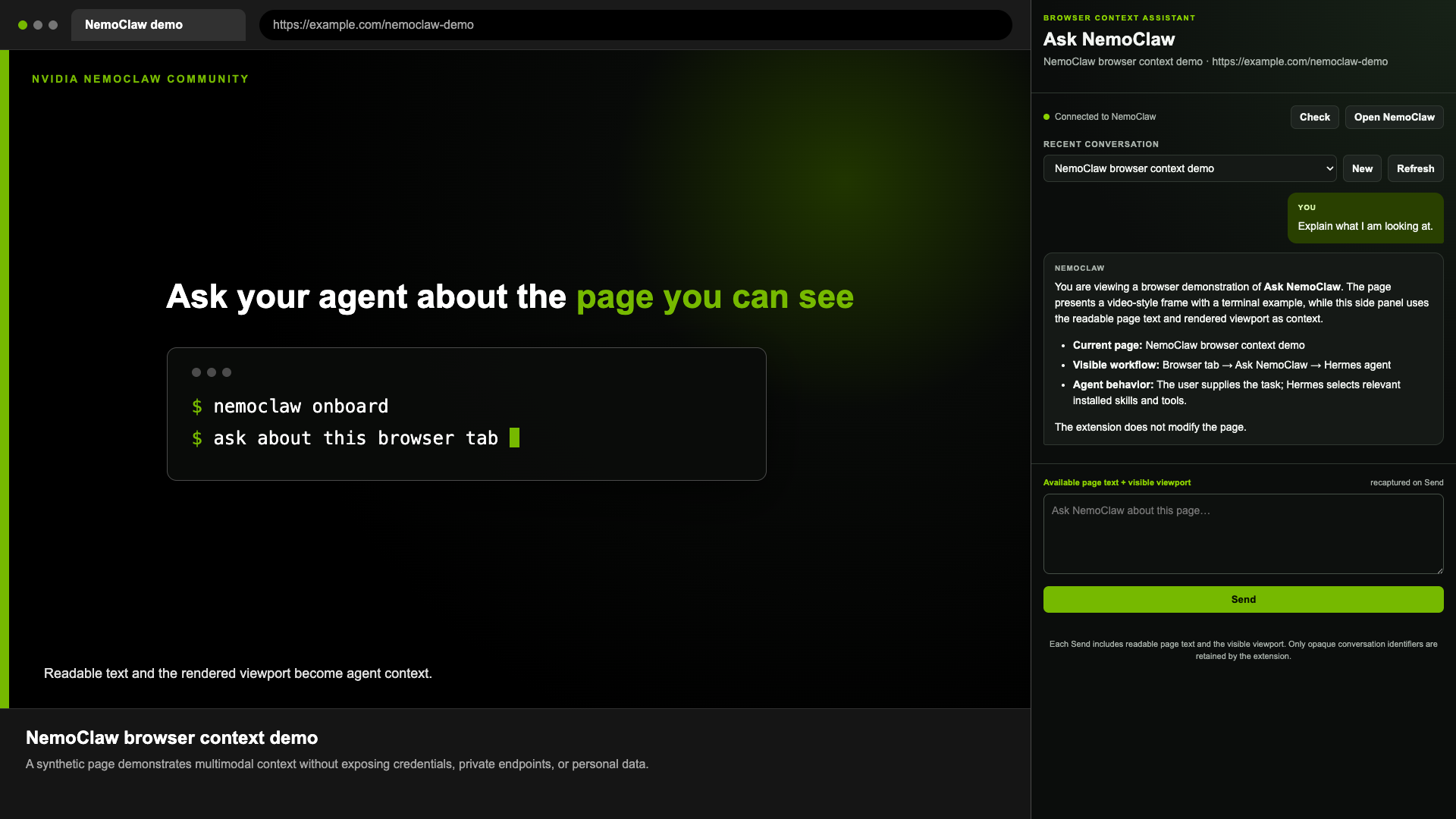
The screenshot uses a synthetic page and conversation. It contains no private endpoint, profile, credential, or production data.
At a glance
| Question | Answer |
|---|---|
| What do I get? | A Chrome side panel with isolated Hermes conversations, fresh browser context on every message, and local NeMo Relay ATIF traces. |
| Where does it run? | The NemoClaw agent and Hermes server run on a Linux host. The Ask NemoClaw extension runs in Chrome on your workstation. This guide uses the NemoClaw Brev launchable for the Linux host. |
| What was tested? | Local tests and a fresh Brev deployment using NemoClaw 0.0.123, OpenShell 0.0.106, and nvidia/nemotron-3-nano-omni-30b-a3b-reasoning on September 14, 2026. |
| What leaves the browser? | The active page URL, title, selected text, readable page text, visible viewport image, and your prompt go to your configured Hermes deployment and inference provider. |
| Can it take actions? | Not by itself. Tool actions still need an installed Hermes tool, its credentials, and an OpenShell policy that allows the exact destination. |
| Who maintains it? | This is an NVIDIA-authored educational example with best-effort community support. See the repository support policy. |
Architecture
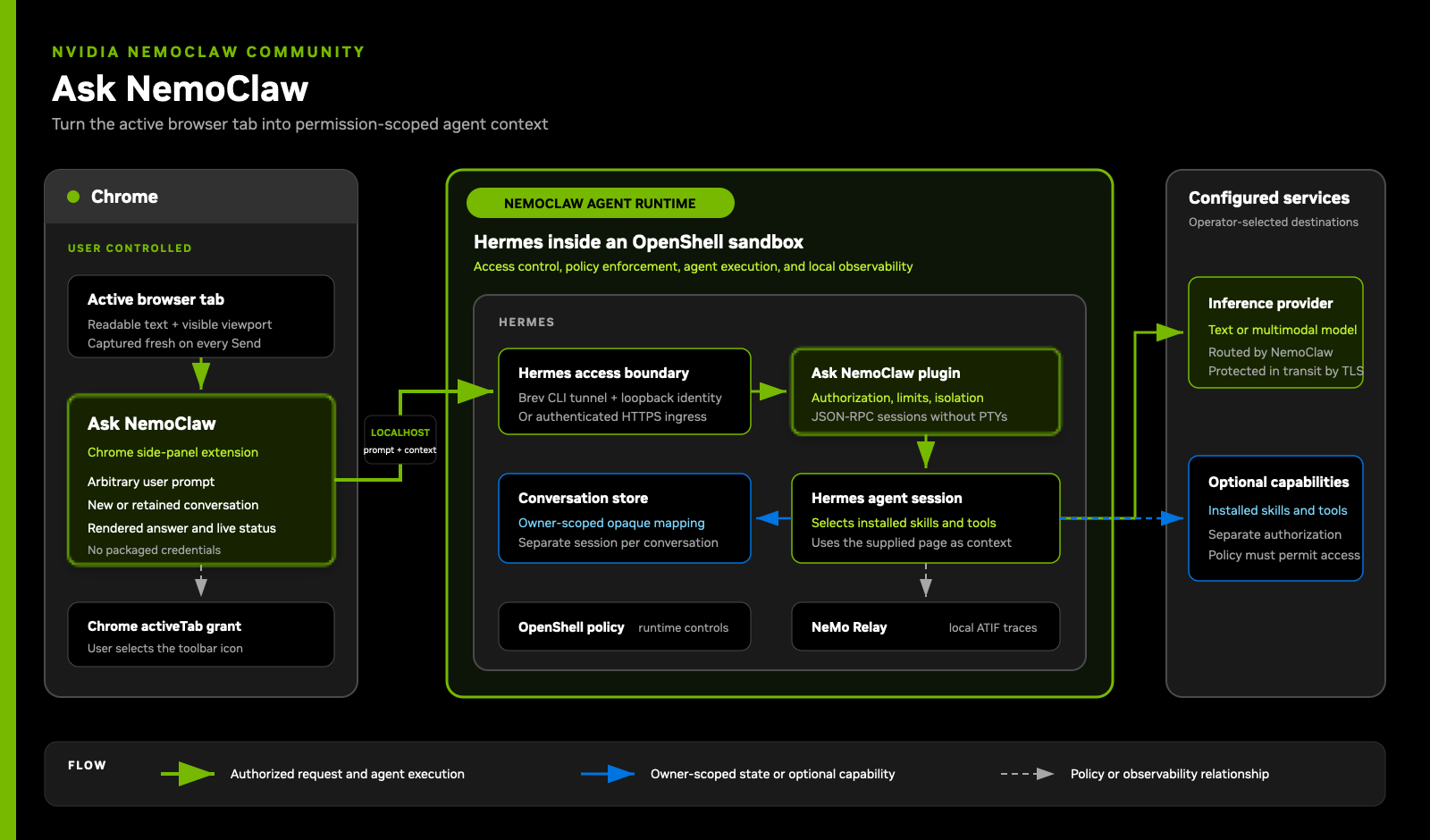
Chrome grants temporary access to the active tab when you select the extension. The extension sends your prompt and bounded page context to one Hermes origin that you choose in Settings. The server plugin maps each browser conversation to its own non-PTY Hermes session, so browser conversations also appear in the Hermes dashboard without consuming terminal devices.
OpenShell applies runtime controls, and NeMo Relay writes local ATIF traces. The extension has no built-in deployment hostname. Chrome asks you to grant access to the exact origin you configure, and changing origins removes the old permission.
For the Brev quick start, the authenticated Brev CLI tunnel is the access boundary and Hermes stays bound to loopback. Shared deployments should use an authenticated HTTPS ingress instead. See Security and data for the full trust model.
Before you start
You’ll need:
- a fresh instance from the NemoClaw Brev launchable;
- Chrome 116 or newer on your workstation;
- the Brev CLI on your workstation; and
- an inference provider API key.
This guide sends the active page context to the inference provider you select. Make sure that provider is approved for the pages you plan to use. Local ATIF traces also contain prompts, page context, model output, and tool events, so treat them as sensitive data.
Quick start
1. Create a fresh Brev host
Create one instance from the launchable, but don’t run the launchable’s web onboarding flow. The steps below update NemoClaw, prepare the custom Hermes image, and then create the only sandbox this example needs.
Connect to the instance and confirm that NemoClaw lists no sandboxes:
nemoclaw status
2. Prepare the host
Some launchable versions use Docker’s containerd snapshotter, which doesn’t support the nested overlay mounts needed by an OpenShell sandbox. Check it:
docker info --format 'Driver={{.Driver}} Status={{json .DriverStatus}}'
If the output contains io.containerd.snapshotter.v1, switch this fresh host
to overlay2:
printf '%s\n' \
  '{' \
  '  "features": {' \
  '    "containerd-snapshotter": false' \
  '  }' \
  '}' \
  | sudo tee /etc/docker/daemon.json >/dev/null
sudo systemctl restart docker
docker info --format 'Driver={{.Driver}} Status={{json .DriverStatus}}'
The result should report Driver=overlay2.
Review the NemoClaw license and third-party software notice before running the next command. By setting the acceptance variable, you confirm that you accept those terms. The command updates NemoClaw without starting onboarding because it removes inference credentials from the installer process:
cd /tmp
curl -fsSL https://www.nvidia.com/nemoclaw.sh \
  | env -u NVIDIA_INFERENCE_API_KEY -u NVIDIA_API_KEY \
      NEMOCLAW_AGENT=hermes \
      NEMOCLAW_NON_INTERACTIVE=1 \
      NEMOCLAW_ACCEPT_THIRD_PARTY_SOFTWARE=1 \
      bash
Refresh your command path:
source "$HOME/.bashrc"
export PATH="$HOME/.local/bin:$PATH"
command -v nemoclaw nemohermes openshell
nemoclaw --version
openshell --version
Now clone the community repository and run the guarded Brev gateway handoff:
git clone https://github.com/NVIDIA/nemoclaw-community.git
cd nemoclaw-community/examples/recipes/nvidia/browser-context-knowledge-assistant
bash scripts/prepare-brev-gateway.sh
bash scripts/check-brev-host.sh
The handoff stops only the empty legacy gateway and lets the updated NemoClaw installation own the new gateway. It refuses to continue if it finds a sandbox. For details and troubleshooting, see Brev setup.
3. Create the Hermes sandbox
Run the recipe’s onboarding script:
bash scripts/onboard.sh --fresh
Enter your inference credential through the normal NemoClaw prompt. For
viewport understanding, select
nvidia/nemotron-3-nano-omni-30b-a3b-reasoning as the primary model. This is
needed because the extension sends both readable page text and an image of the
visible viewport. NemoClaw and OpenShell currently expose one enforced
inference route to Hermes, while Hermes auxiliary vision expects a separate
model route. Secure multi-model OpenShell routing, including Switchyard
integration, is tracked in
NVIDIA/NemoClaw#8887. Until
that support is available, the primary model must accept image input.
The NVIDIA endpoint currently rejects the combined tool-message and image
schema produced by a normal tool-enabled Hermes turn. The example therefore
uses the same Omni model in two stages: a bounded, tool-free call describes the
viewport through inference.local, then the normal Hermes turn receives that
description as explicitly untrusted browser context. Hermes skills and tools
remain available in the second stage. A text-only primary model can still use
readable page text, but it cannot analyze the viewport image.
The vision stage retries temporary provider failures. If those retries are exhausted but readable page text is available, the agent continues with that text and records that viewport analysis was unavailable. Image-only pages return a clear vision error because they have no text fallback.
When onboarding finishes, check the sandbox:
nemohermes ask-nemoclaw status
nemohermes ask-nemoclaw dashboard-url --quiet
Don’t configure Hermes dashboard authentication for this loopback Brev quick start. The authenticated Brev CLI tunnel provides access to the local dashboard.
4. Forward Hermes to your workstation
This step is only needed when Hermes is bound to loopback on the Brev host. Skip it if your workstation can already reach Hermes directly or if a Kubernetes deployment exposes Hermes through an authenticated HTTPS ingress. In those environments, configure the extension with the reachable Hermes URL.
On the workstation where Chrome is installed, keep this command running:
brev port-forward <brev-instance-name> -p 18789:18789
Verify the forwarded service from the example directory:
bash scripts/check-connection.sh http://127.0.0.1:18789
The final lines should report HTTP 200 for the Ask NemoClaw API and
Loopback development connection is ready.
If local port 18789 is already in use, map another local port:
brev port-forward <brev-instance-name> -p 18790:18789
Then use http://127.0.0.1:18790 in the extension. Don’t use a Brev Secure
Link as the extension URL; its redirect-based login flow isn’t an API ingress.
5. Load the Chrome extension
Download the prebuilt portable extension and extract the ZIP file. It contains no deployment URL or credential.
Then load the extracted directory:
- Open
chrome://extensions. - Enable Developer mode.
- Select Load unpacked.
- Select the extracted
ask-nemoclaw-extensiondirectory. - Pin Ask NemoClaw to the Chrome toolbar.
- Open the side panel and enter
http://127.0.0.1:18789in Settings. - Approve Chrome’s request for that exact origin and confirm the status says Connected to NemoClaw.
You only need to install the extension once. Use the Settings gear to switch
deployments later. Contributors can build the same portable package from source
with python3 scripts/build-extension-release.py.
Use Ask NemoClaw
- Make sure the Brev port forward is running, then open the Ask NemoClaw side panel and confirm it says Connected to NemoClaw. For another deployment, open Settings and enter its reachable Hermes URL.
- Open a normal HTTP or HTTPS page.
- Select the Ask NemoClaw toolbar icon.
- Enter any prompt and select Send.
Every message recaptures the available page text and visible viewport. The page doesn’t need readable DOM text if Chrome can capture a valid viewport image. After changing tabs, select the toolbar icon on the new tab before selecting Refresh; this grants temporary access to that tab. If the tab or document changes during capture, the extension discards the capture and asks you to try again. Keep the target tab active until capture finishes.
The agent chooses skills from your prompt, not from the page URL. For example, a Google Docs skill is used only when it’s installed, authorized, allowed by OpenShell policy, and relevant to what you ask.
The connection indicator shows whether Hermes is ready, needs authentication, or is unavailable. Open NemoClaw opens the dashboard, and the Settings gear contains connection and disconnect controls. Shared HTTPS deployments use the normal Hermes login. The extension keeps rotated session tokens only in Chrome’s memory-backed session storage.
Open NemoClaw preserves the configured dashboard path and includes
profile=dashboard-home so browser conversations
and ordinary dashboard chat use the profile served by this dashboard process.
Keep that profile selected. Hermes 0.20.6 can remove the profile parameter when
the native profile selector changes; Sessions and Chat may then remain on their
loading screen. Select Open NemoClaw again to restore the correct profile.
Multimodal requests over large pages can take several minutes. The side panel keeps polling and shows the current request stage while Hermes works. Stop cancels the conversation during viewport analysis or retry waits and prevents further vision retries and Hermes prompt submission. A vision request already sent to the provider can finish or time out, but its result is ignored. At most two such HTTP requests can remain active. Stop also prevents prompt submission during initialization. After submission, it requests a session interrupt; it does not undo actions that the agent has already completed.
Verify the example
Run the local test suite:
python3 -m venv .venv
.venv/bin/pip install -r requirements-test.txt
PYTHON_BIN=.venv/bin/python bash scripts/verify.sh
For a quick live check:
Run the synthetic end-to-end test from the Brev host after Hermes is ready:
bash scripts/test-functional.sh http://127.0.0.1:18789
It creates two isolated browser conversations and verifies page-text context, a follow-up turn, the bundled red viewport image, Hermes Sessions registration, and creation of a local NeMo Relay ATIF trace. The test uses only generated content; it does not submit a real browser page.
For a manual browser check:
- Open a public page with readable text and a distinctive image or diagram.
- Ask for a short summary and a description of what’s visible.
- Send a follow-up question and confirm that it keeps the conversation.
- Select New and confirm that the new conversation starts without the old context.
- Select Open NemoClaw, then confirm that both browser conversations appear
in Hermes Sessions. Keep the
dashboard-homeprofile selected. - Check
/sandbox/.hermes-data/nemo-relay/atiffor a new trace file. Don’t inspect trace values when the page contains sensitive data.
NeMo Relay keeps these ATIF JSON traces inside the sandbox. From the NemoClaw host, list their filenames without printing their contents:
nemohermes ask-nemoclaw exec -- \
  find /sandbox/.hermes-data/nemo-relay/atif \
    -maxdepth 1 -type f -name '*.json' -printf '%f\n'
To copy the traces to the host for an authorized review:
mkdir -p "$HOME/ask-nemoclaw-traces"
openshell sandbox download \
  ask-nemoclaw \
  /sandbox/.hermes-data/nemo-relay/atif \
  "$HOME/ask-nemoclaw-traces"
chmod -R go-rwx "$HOME/ask-nemoclaw-traces"
On Brev, copy that directory to your workstation from a local terminal:
brev copy \
  <instance-name>:/home/ubuntu/ask-nemoclaw-traces \
  "$HOME/Downloads/"
Treat the downloaded files as sensitive because they can contain the prompt, browser context, model output, and tool events.
See Development and verification for the complete test matrix and shared-deployment reference.
Limitations
- The image includes only the visible viewport, not off-screen content, other tabs, Chrome’s toolbar, or the full accessibility tree.
- Chrome’s
activeTabpermission requires a toolbar click on each new tab. - Google Workspace access needs a separate skill or tool, authorization, and exact OpenShell egress policy.
- Separating the user prompt from page content reduces prompt-injection risk, but it doesn’t make untrusted content safe by itself.
- ATIF traces contain sensitive context until the operator removes them. This example doesn’t include an automatic retention policy.
- Central Chrome distribution requires standard Chrome Enterprise packaging and policy management outside this repository.
Cleanup
Stop the sandbox without deleting its state:
nemohermes ask-nemoclaw stop
The next command permanently removes the sandbox and its workspace after a confirmation prompt:
nemohermes ask-nemoclaw destroy
Stop or delete the Brev instance separately when you’re finished.