

Google Cloud Storage#
To control access to workflow data in Google Cloud Storage, the necessary Google Cloud resources and policies must be created. This includes
A GS Bucket
An Special IAM Role (Optional)
Linking Users to Bucket with a IAM Role
An ACL (Optional)
Note
For general bucket level access, it is recommended to just use IAM Policies. For object level access, Access Control Lists (ACLs) are required.
Setting up the bucket#
For instructions on creating Google Storage Buckets, follow Create Bucket.
Enter Organization#
Login to Google Storage Console.
Click on the Organization field in the top left. The default value is
No organization.

In the popup, Click on the drop down field to select your organization.
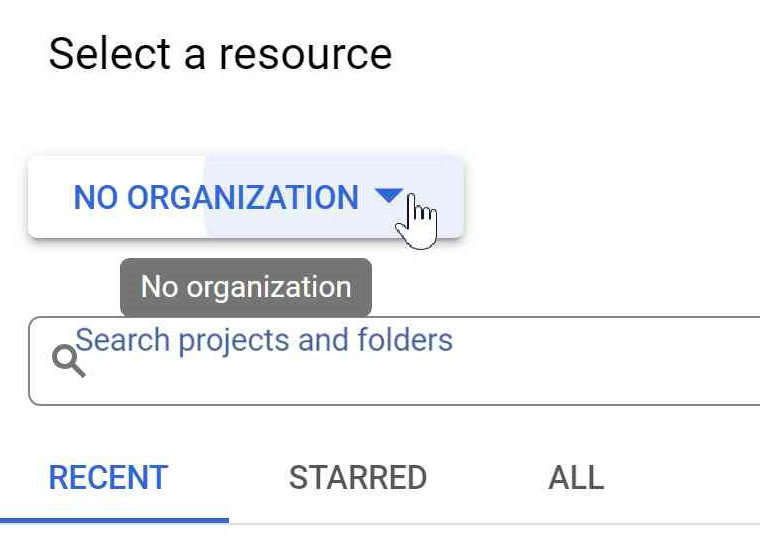
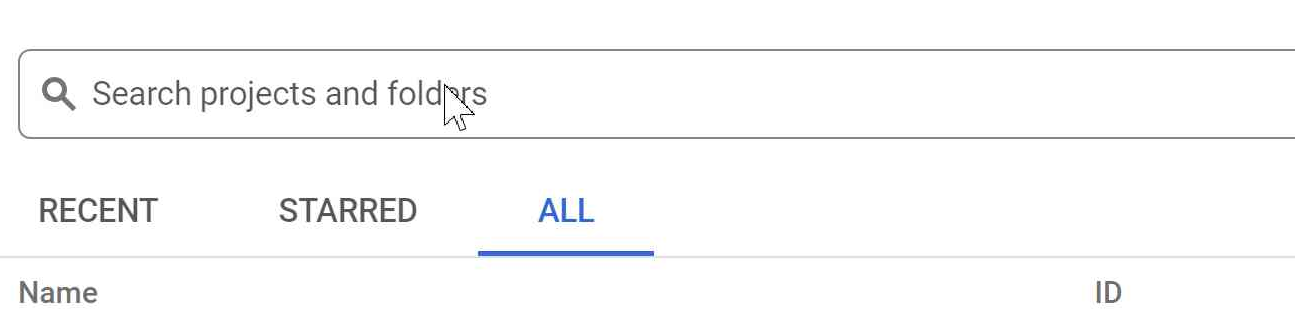
Click on the
ALLtab, search for your project, and click on it.
Create IAM Role (Optional)#
Note
This section is for creating a special IAM Role and is NOT necessary to add users. If you do not want to use a special role, skip this section.
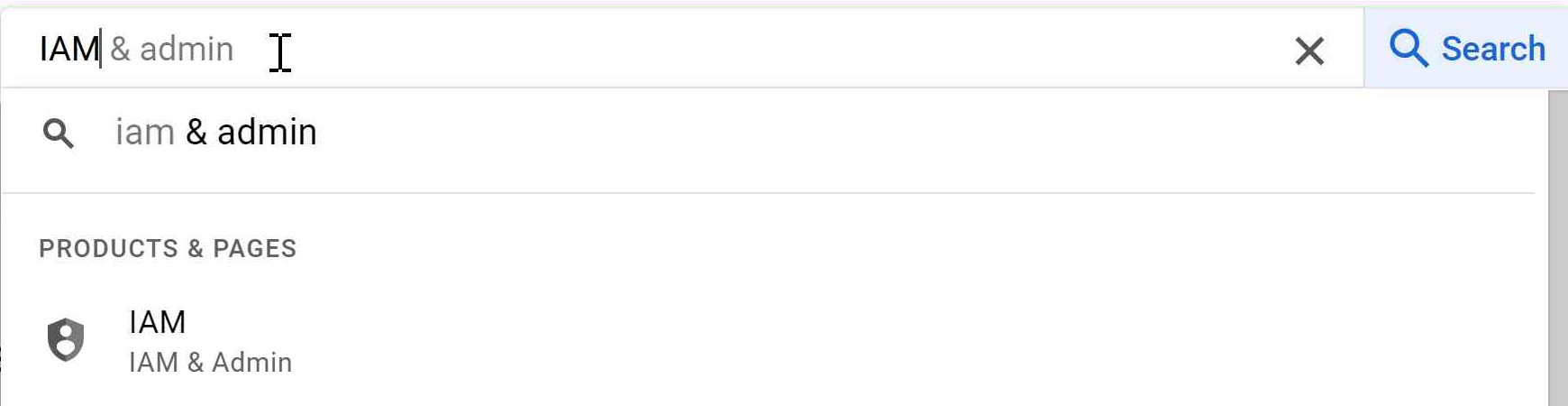
In the Google Storage Console, search IAM in the search bar and click on IAM in the suggested entries.
Click on Role in the left task bar.
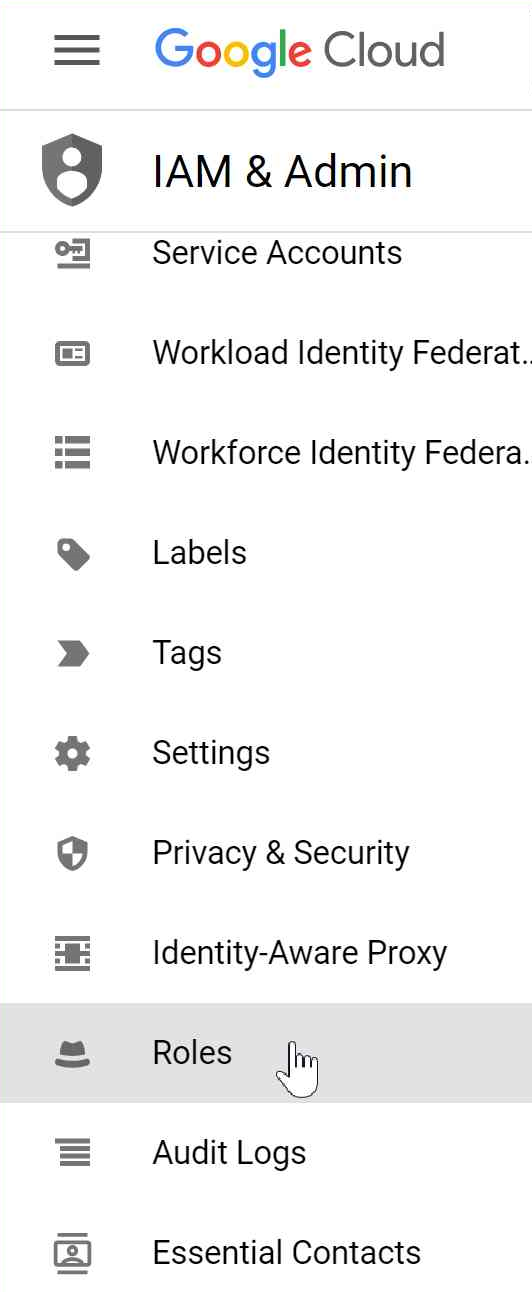
Click on Create Role to create a custom role.

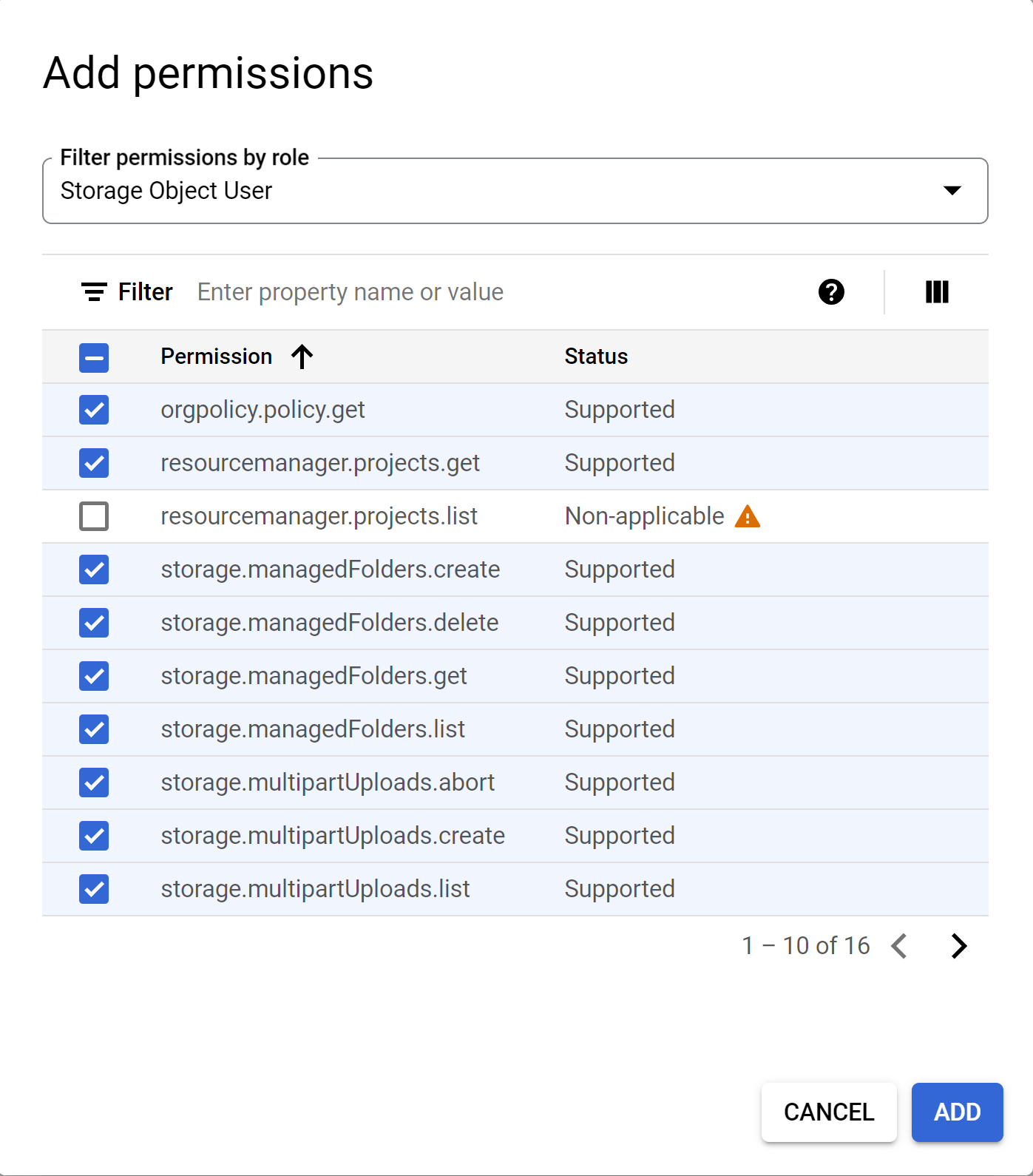
Title the role accordingly and set the ID to be the same as the Title. Add the correct permissions:
Upload and Delete Access requires the
Storage Object Userrole.Download Access requires
Storage Object Viewerrole.
Note
More information about roles can be found at IAM Roles.
Link User and Bucket with IAM Policy Permissions#
For instructions on linking IAM Policies to a principal (user), follow Create IAM. This will allow the user to have all the permissions the role allows for that bucket.
Upload and Delete Access requires the
Storage Object Userrole.Download Access requires
Storage Object Viewerrole.
To use a created role from the previous section, simply enter that role instead.
Note
Do NOT set the user to have the assigned Role in the IAM & Admin page as the user will get the access to ALL
buckets with those Role permissions.
Create ACL (Optional)#
Upload and Delete Access requires the Owner access.
Download Access requires Reader access.
For instructions on creating ACLs, follow Create ACL.
Construct URI#
URIs are constructed as follows with examples for bucket name my_bucket:
Follow Configure Storage Connection to add the bucket to OSMO.