
Using CMake Presets via VS Code GUI extension#
Recommended when using DevContainers.
The recommended way to use CMake Presets is via the VS Code extension CMake Tools, already included in CCCL’s DevContainers. As soon as you install the extension you would be able to see the sidebar menu below.
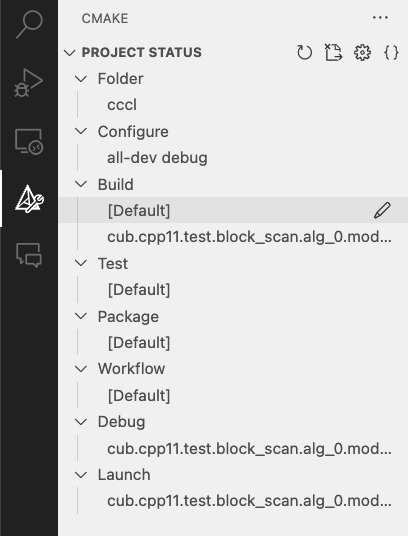
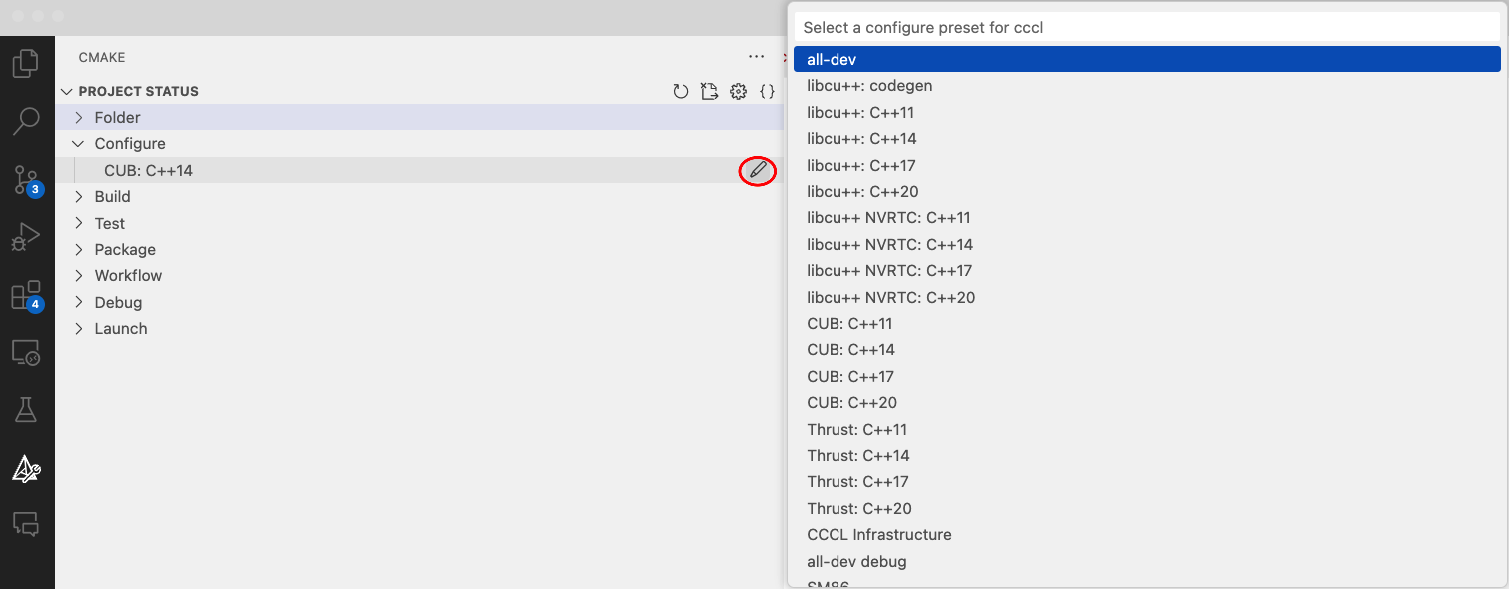
You can specify the desired CMake Preset by clicking the “Select Configure Preset” button under the “Configure” node (see image below).
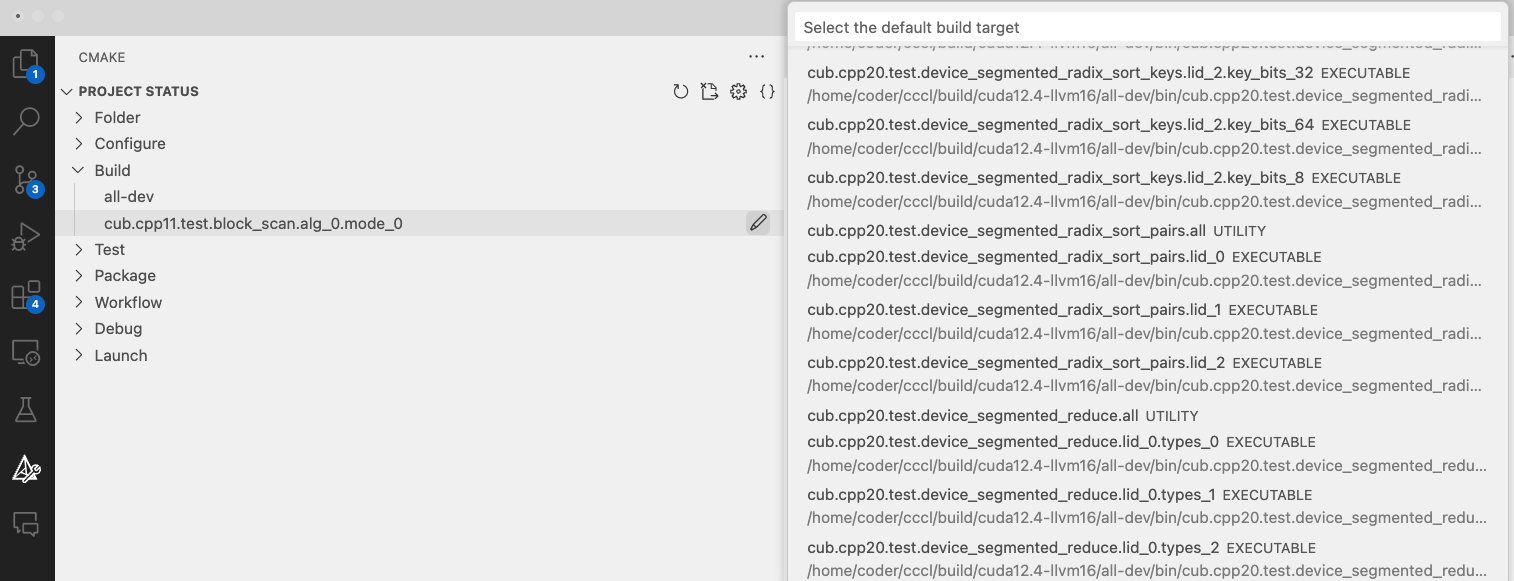
After that you can select the default build target from the “Build” node. As soon as you expand it, a
list will appear with all the available targets that are included within the preset you selected. For
example if you had selected the all-dev preset VS Code will display all the available targets we
have in cccl.
You can build the selected target by pressing the gear button
( ) at the bottom of the VS Code window.
Alternatively you can select the desired target from either the “Debug” or “Launch” drop down menu
(for debugging or running correspondingly). In that case after you select the target and either press
“Run” ( ) or “Debug” (
 ) the target will build on its own before running without the user
having to build it explicitly from the gear button.
) the target will build on its own before running without the user
having to build it explicitly from the gear button.
We encourage users who want to debug device code to install the Nsight Visual Studio Code Edition
extension that
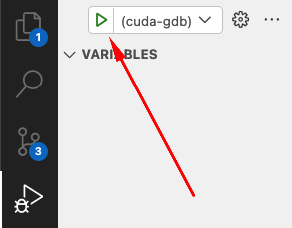
enables the VS Code frontend for cuda-gdb. To use it you should launch from the sidebar menu instead
of pressing the “Debug” button from the bottom menu.