

Workflow Submission#
OSMO offers two flexible ways to submit workflows: through the Web UI for quick, visual submissions, or via the CLI for advanced features and automation. Choose the method that best fits your needs.
Quick and intuitive. Perfect for getting started, prototyping, and monitoring workflows through a visual interface.
Powerful and script-able. Essential for uploading local files, automating submissions, and integrating with CI/CD pipelines.
Submit via Web UI#
The Web UI provides the fastest way to submit and monitor workflows with an intuitive interface.
When to use:
✅ Your workflow doesn’t require local files from your machine
✅ You prefer point-and-click interactions
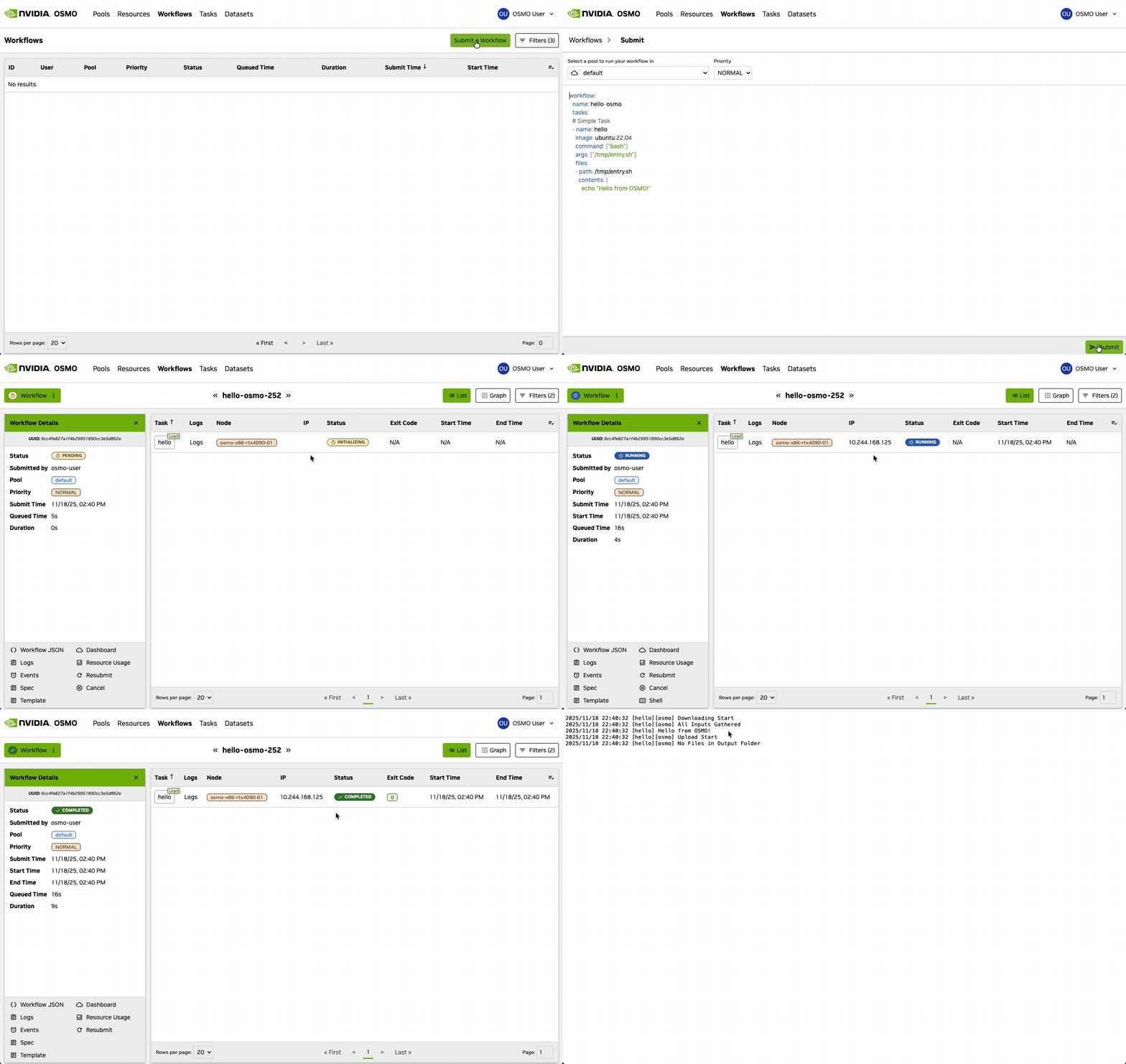
Navigate to the OSMO web interface in your browser
Click “Submit Workflow” or the + button
Paste your workflow YAML definition or upload a workflow file
Configure any parameters or select a compute pool
Click Submit
See also
Try the Hello World tutorial for a guided walk-through of submitting your first workflow via the Web UI.
Submit via CLI#
The CLI unlocks advanced submission capabilities, especially for workflows that use local files or require automation.
When to use:
✅ You need to upload local files or directories to your workflow
✅ You want to automate workflow submissions in scripts or CI/CD pipelines
✅ You need to continuously sync local changes to running tasks
✅ You prefer working from the terminal
Note
For CLI installation and setup, see Install Client.
Basic Submission#
Submit a workflow from a YAML file:
$ osmo workflow submit my_workflow.yaml

Workflow submit successful.
Workflow ID        - my-workflow-1
Workflow Overview  - https://osmo.example.com/workflows/my-workflow-1
CLI-Exclusive Features#
Important
The following capabilities are only available via CLI and cannot be done through the Web UI.
Uploading Local Files#
Files can be injected directly into tasks using the files field with localpath:
tasks:
- name: train
  image: pytorch/pytorch
  command: ["python"]
  args: ["/workspace/train.py"]
  files:
  - localpath: scripts/train.py       # Local file from your machine
    path: /workspace/train.py         # Destination in the container
$ osmo workflow submit training.yaml
# The CLI automatically uploads scripts/train.py during submission
See also
See File Injection for more file injection options.
Continuous File Sync with Rsync#
Upload files continuously to a running task as they change on your local machine:
$ osmo workflow submit training.yaml --rsync ./code:/workspace

Workflow submit successful.
Workflow ID        - training-1
Workflow Overview  - https://osmo.example.com/workflows/training-1

Rsync daemon started in detached process: PID 12345
To view daemon logs: tail -f ~/.local/state/osmo/rsync/rsync_daemon_training-1_train.log
This is perfect for:
Active development - Edit code locally and have it instantly available in your running task
Iterative debugging - Update scripts without resubmitting the workflow
Live data feeds - Stream data files to long-running jobs
See also
See Rsync for detailed rsync usage and options.
Advanced CLI Options#
Parameterize Workflows#
Override workflow values at submission time:
$ osmo workflow submit train.yaml \
    --set learning_rate=0.001 \
    --set batch_size=32 \
    --set-string model_name="bert-base" \
    --set-env WANDB_PROJECT=my-experiment
Set Workflow Labels#
Add or override immutable workflow labels with repeatable --label key=value
flags. A command-line value wins over the same key in the workflow YAML.
$ osmo workflow submit training.yaml \
    --label team=robotics \
    --label experiment=run42
Immediately after --label, a token in KEY=VALUE form is treated as the
label assignment even if it starts with a hyphen or resembles a command option.
Label keys must start with a letter or number, so both --label -key=val and
--label=-key=val reach label validation and are rejected with an error
identifying -key as invalid.
For example, --label --pool=foo is rejected as an invalid label key
--pool, while --label --pool foo reports a missing label argument.
Use --label team=alpha --pool=foo to set both a label and a pool.
The -- argument terminator retains its usual meaning.
The same flag and validation behavior apply to app submission
(osmo app submit <app-name>) and resubmission by workflow ID
(osmo workflow submit <workflow-id>). Restart does not accept label
overrides because it reuses the stored specification; resubmit the workflow
when a stored label must change.
Validate labels and any administrator policy without creating a workflow:
$ osmo workflow validate training.yaml --label team=robotics
If a label policy is in warn mode, the submission succeeds but prints a
WARNING: line explaining what to change before the policy is enforced,
for example:
WARNING: Workflow is missing label 'team'; add it now to avoid rejected
submissions once it is required.
In enforce mode the submission is rejected and the error identifies the missing key or disallowed value.
Find workflows with an exact label, a glob selector, an alternative selector, or a missing key:
$ osmo workflow list --label team=robotics --label experiment=run42
$ osmo workflow list --label 'project=robotics_*'
$ osmo workflow list --label 'project=(sim_*|hil_*)'
$ osmo workflow list --label 'team=robotics_(a|b)'
$ osmo workflow list --no-label team
Label selectors are case-sensitive. * matches zero or more characters;
every other character, including _, is literal. A parenthesized | group
matches any one of its alternatives, which can themselves contain *. Groups
cannot nest, each needs at least two alternatives, and one selector can expand
to at most 32 combinations. Quote selectors so the shell does not interpret
them.
Repeated --label filters combine with AND; alternatives within one selector
combine with OR. Pattern syntax applies only to list filters: submission and
validation still require exact Kubernetes label values.
Dry Run Validation#
Validate your workflow without actually submitting it:
$ osmo workflow submit training.yaml --dry-run
# Prints the rendered workflow specification without submitting
Target Specific Pools#
Submit to a specific compute pool:
$ osmo workflow submit training.yaml --pool gpu-pool-a100
Set Priority#
Control scheduling priority:
$ osmo workflow submit training.yaml --priority HIGH
# Options: HIGH, NORMAL, LOW
See also
For complete CLI reference, see submit.