

Interactive 3D Viewer#
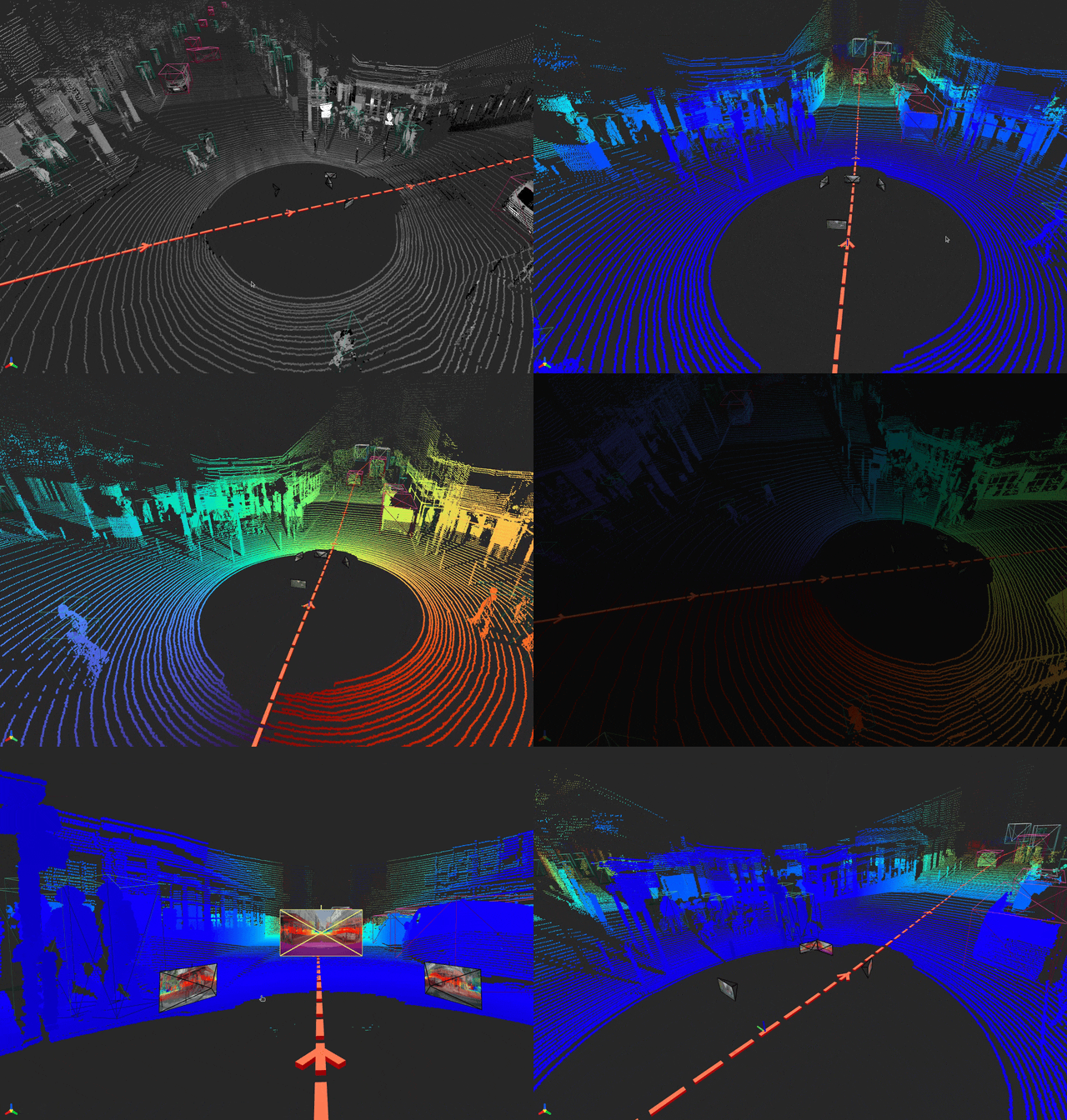
The tool //tools/ncore_vis provides a browser-based interactive 3D viewer
for NCore V4 sequence data, built on viser.
Each connected browser client gets an independent set of GUI controls and 3D scene state, allowing multiple users to inspect the same sequence concurrently.
Usage#
Basic invocation:
bazel run //tools/ncore_vis -- v4 --component-group=<SEQUENCE_META.json>
With multiple component groups:
bazel run //tools/ncore_vis \
    -- \
    v4 \
    --component-group=<COMPONENT_GROUP0> \
    --component-group=<COMPONENT_GROUP1>
With a custom port:
bazel run //tools/ncore_vis \
    -- \
    --port=9090 \
    v4 \
    --component-group=<SEQUENCE_META.json>
Global Options#
Option |
Default |
Description |
|---|---|---|
|
|
Server host address |
|
|
Server port |
|
|
Pose graph frame ID for the rig/vehicle body |
|
|
Pose graph frame ID for the world/map reference |
|
on |
Whether to recenter the viewer world frame to the rig’s initial pose |
|
off |
Start a debugpy remote debugging session |
|
|
Port on which debugpy will wait for a client to connect |
V4 Sub-command Options#
Option |
Default |
Description |
|---|---|---|
|
(required) |
Data component group or sequence meta path (may be repeated) |
|
|
Component group name for poses |
|
|
Component group name for intrinsics |
|
|
Component group name for masks ( |
|
|
Component group name for cuboids ( |
Features#
Sequence Tab and Playback#
The Sequence tab (shown first) provides global controls:
Reference Frame: slider to navigate through frames (shown first)
Reference Sensor: select which sensor drives frame synchronization (defaults to the first lidar, if available)
Play / Pause: auto-advance the reference frame at a configurable FPS
Playback FPS: frames per second during playback (default 5)
Loop: when enabled (default), playback wraps to frame 0 at the end
Rig Trajectory: toggle visibility of the trajectory path
Show Rig Frame: toggle a coordinate frame tripod at the current rig pose (updates live as the reference frame changes)
Show World Frame: toggle a coordinate frame tripod at the world origin (disabled by default)
All controls have hover tooltips describing their purpose.
Camera Frustums#
Renders per-camera frustums showing decoded RGB images at the current frame. Clicking a frustum moves the client camera to the corresponding viewpoint.
The Cameras tab provides:
Enabled: master toggle to show/hide all cameras and skip rendering when disabled
Show Labels: toggle per-camera name labels
Each camera has an independent frame slider, a Show Camera visibility toggle, and a Go to Frame button
Camera Overlay Settings#
The Overlay Settings folder (collapsed by default) in the Cameras tab contains shared controls that apply uniformly to all cameras, grouped by feature with the toggle as the first entry in each group:
Rectification:
Rectify: toggle rectification of all camera images to an ideal (distortion-free) pinhole. Overlays project into the rectified target model so they stay faithful with the rectification (see Rectification).
Rectify FOV Scale: scale of the rectified field of view relative to the camera’s natural field of view (
> 1widens,< 1narrows)
Cuboid overlay:
Overlay Cuboids: toggle cuboid edge projection on all cameras
Cuboid Source: label source (
LabelSource) for cuboid overlays
Lidar projection (only shown if lidar sensors are available):
Project Lidar: toggle lidar point projection on all cameras
Lidar Sensor: select which lidar to project
Projection Mode:
rolling-shutter(default),mean,start,endPoint Size and Range Cycle (m): for lidar projection jet colormap
Mask overlay (only shown if masks are available):
Show Mask: toggle mask overlay on all cameras
Mask Name: select a named camera mask to overlay
Mask Opacity: transparency of the mask color tint (default 0.3)
Camera Rectification#
When Rectify is enabled, each camera image is remapped to an ideal
(distortion-free) pinhole using a Rectificator, and the
active camera model used for all overlay projections (lidar, radar, point
clouds, cuboids) is switched to that ideal-pinhole target so the overlays remain
aligned with the rectified image. The Rectify FOV Scale slider multiplies
the camera’s natural field of view (> 1 widens, < 1 narrows); widening
past the captured field of view yields black borders. See Rectification
for the underlying conversion.
Camera Cuboid Overlay#
When enabled, 3D cuboid bounding box edges are projected onto all camera
images using rolling-shutter-aware projection via
CameraModel.
Lidar Projection Overlay#
Projects a lidar point cloud onto the camera image with range-based coloring
(similar to //tools:ncore_project_pc_to_img).
Camera Mask Overlay#
Overlays static per-camera masks (loaded from the sequence) as a semi-transparent color tint on the camera image. Mask names are discovered from all cameras in the sequence and shown in a shared dropdown. The opacity of the tint is adjustable. Masks are boolean images stored per-sensor and are not per-frame.
Camera Labels Overlay#
When a sequence contains CameraLabelsComponent data,
a Camera Labels overlay section appears in the Cameras tab. This allows
visualizing per-frame labels (depth maps, segmentation masks, surface normals,
etc.) on camera images.
Global controls:
Show Labels: master toggle to enable camera label visualization (disabled by default)
Matching: timestamp matching strategy for sparse labels
Closest: always picks the nearest available label timestamp (default)
Exact: only shows a label if one exists at the camera frame’s exact timestamp; otherwise shows the RGB image
Opacity: blend factor between RGB image and label visualization (0.0 = full RGB, 1.0 = full label)
Per-camera controls:
Label: dropdown showing only labels associated with this camera, populated from
query_camera_labels(). Defaults to the first available label so that toggling “Show Labels” on immediately renders something.
Visualization adapts to the label category:
DEPTH – TURBO colormap with percentile-based normalization
SEGMENTATION – 20-color class palette
MASK – green tint overlay (3-channel masks rendered as RGB)
GEOMETRY – normal vectors mapped to RGB ([-1,1] → [0,255])
Other categories – grayscale normalization
Lidar Point Clouds#
Renders per-lidar point clouds in world coordinates.
The Lidars tab provides:
Enabled: master toggle to show/hide all lidar point clouds and skip rendering when disabled
Each lidar sensor has its own folder with:
Frame: per-lidar frame slider
Show Lidar: per-lidar visibility toggle
Point Cloud Settings (subfolder):
Point Size Radius (cm): rendered point size (default 25, range 0–50)
Color Style: Intensity, Intensity γ=1/2, Intensity γ=1/4, Range (jet), Height (turbo), Timestamp, Model Row, Model Column
Range Cycle (m): configurable cycle distance for the jet colormap (default 50 m)
Height Range (m): configurable min/max Z range for the turbo colormap
Timestamp: colors points by per-ray capture time within the frame (turbo colormap, early=blue, late=red)
Model Row / Model Column: colors points by their structured lidar model element indices (row = elevation, column = azimuth); only available when model element data is present in the sequence
Fuse: accumulate point clouds across a configurable frame range and step
Motion Compensation: toggle between motion-compensated (default) and non-motion-compensated point clouds
3D Cuboid Bounding Boxes#
Wireframe cuboid boxes rendered in world coordinates at the current reference frame’s timestamp. Cuboid observations are queried by timestamp window and transformed to world coordinates via the pose graph, independent of any specific sensor’s frame index.
The Cuboids tab provides:
Enabled: master toggle to show/hide all cuboids and skip rendering when disabled
Cuboid Source: label source selection (
LabelSource)Show Labels: toggle
track_id[class_id]text labels above each cuboid
Rig Trajectory#
Red boxes along the rig trajectory sampled from the pose graph, with directional arrow indicators every 10th pose.
A rig coordinate frame tripod shows the current rig pose and updates live as the reference frame changes.
A world coordinate frame tripod at the origin can be toggled on (disabled by default).
Both tripods use standard RGB axis coloring (red=X, green=Y, blue=Z).
When rig_frame_id is None (programmatic use only), the trajectory and
rig frame are skipped; the world frame tripod is still available.
Architecture#
The viewer uses a component-based plugin architecture:
tools/ncore_vis/
├── cli.py               # CLI entry point (click group + v4 sub-command)
├── server.py            # Viser server lifecycle, per-client management
├── renderer.py          # Per-client GUI and component orchestration
├── data_loader.py       # SequenceLoaderProtocol wrapper for visualization
├── utils.py             # Shared math/rotation utilities
└── components/
    ├── __init__.py      # Component registry + built-in imports
    ├── base.py          # VisualizationComponent ABC + @register_component
     ├── camera.py        # Camera frustums with cuboid/lidar/mask overlays
     ├── lidar.py         # Lidar point clouds with fusing, motion compensation
     ├── point_clouds.py  # Native point cloud sources (SfM, dense reconstruction)
     ├── cuboids.py       # 3D wireframe cuboid bounding boxes
     └── trajectory.py    # Rig trajectory boxes + rig/world frame indicators
The VisualizationComponent base class defines the lifecycle:
create_gui(tab_group)– build GUI elements inside the tab group.create_sequence_gui(sequence_tab)– optionally add controls to the Sequence tab.populate_scene()– render initial 3D objects.on_reference_frame_change(interval_us: HalfClosedInterval)– react to frame sync.
Extending the Viewer#
To add a new visualization component:
Create a module in
tools/ncore_vis/components/(e.g.radar.py).Implement the component:
from tools.ncore_vis.components.base import VisualizationComponent, register_component

@register_component
class RadarComponent(VisualizationComponent):
    def create_gui(self, tab_group):
        with tab_group.add_tab("Radar"):
            # Add GUI controls ...
            pass

    def populate_scene(self):
        # Render initial 3D objects ...
        pass
Register by importing the module in
components/__init__.py:from tools.ncore_vis.components import radar # noqa: F401
Add the new source file to
BUILD.bazelunderpylib_components.
The component will automatically be instantiated for every connected client.
Registration order in __init__.py determines GUI tab ordering.