

Thumbnail Guidelines#
Thumbnails are the primary visual identifier for SimReady assets in browsers, registries, package catalogs, and review tools. A useful thumbnail should make the asset recognizable before anyone opens the OpenUSD stage, while remaining visually consistent with other assets in the same class.
This guide supplements the normative SR.002 thumbnail
requirement.
SR.002 is included in every version of
FET_033_STANDARD, the SimReady package
metadata feature. Where this guide describes additional source resolutions,
background variants, or rendering choices, those are production guidelines;
the current validator contract remains the canonical thumbnail described
below.
Required thumbnail#
For an asset named Asset.usd, deliver this PNG beside the asset:
Asset.usd
.thumbs/
└── 256x256/
    └── Asset.usd.png
The filename includes the complete USD filename followed by .png. For
example:
Assets/Manufacturer/Asset_Name/Asset.usd
Assets/Manufacturer/Asset_Name/.thumbs/256x256/Asset.usd.png
The image must be representative of the asset’s visible content. The
SR.002 validator checks that the canonical file exists at this exact path;
it does not currently evaluate composition, lighting, camera projection, or
image quality.
Generate thumbnails with simready.thumbnail#
Use the simready.thumbnail library to generate SimReady thumbnails instead
of assembling a lighting rig and camera manually. Install its
simready-thumbnail package, then generate all three background variants:
pip install simready-thumbnail
simready-thumbnail path/to/Asset.usd --background all
The default nucleus layout writes the dark image to the canonical
.thumbs/256x256/Asset.usd.png path and writes the light and transparent
variants beside it as Asset.usd_light.png and
Asset.usd_transparent.png. The default OVRTX backend uses the library’s
packaged thumbnail setup, including neutral 6500 K lighting and an
orthographic three-quarter camera.
Use --usd-setup path/to/thumbnail_setup.usda only when the asset class needs
an approved custom setup. Keeping the packaged default makes framing and
lighting consistent across assets.
Composition#
Use an orthographic camera.
Orient the camera approximately 45 degrees relative to the asset root so the thumbnail communicates depth and shows more than one side.
Frame the complete visible asset with minimal padding. Aim for the object to occupy at least 80% of the limiting image dimension.
Keep the asset centered and avoid cropping geometry.
Do not include grids, viewport controls, selection outlines, text, badges, decals added only for the thumbnail, or other UI overlays.
Disable depth of field and motion blur.
For an asset whose identity depends on a particular viewpoint, adjust the orientation enough to make the asset recognizable while preserving the orthographic projection and consistent framing.
Background variants#
When the consuming library supports theme-aware thumbnails, render these variants from the same camera:
Variant |
Background |
|---|---|
Dark |
sRGB |
Light |
sRGB |
Transparent |
No background; preserve the full alpha channel |
The orange sample shows the same asset, framing, and lighting delivered across all three variants:
Dark |
Light |
Transparent |
|---|---|---|
|
|
|
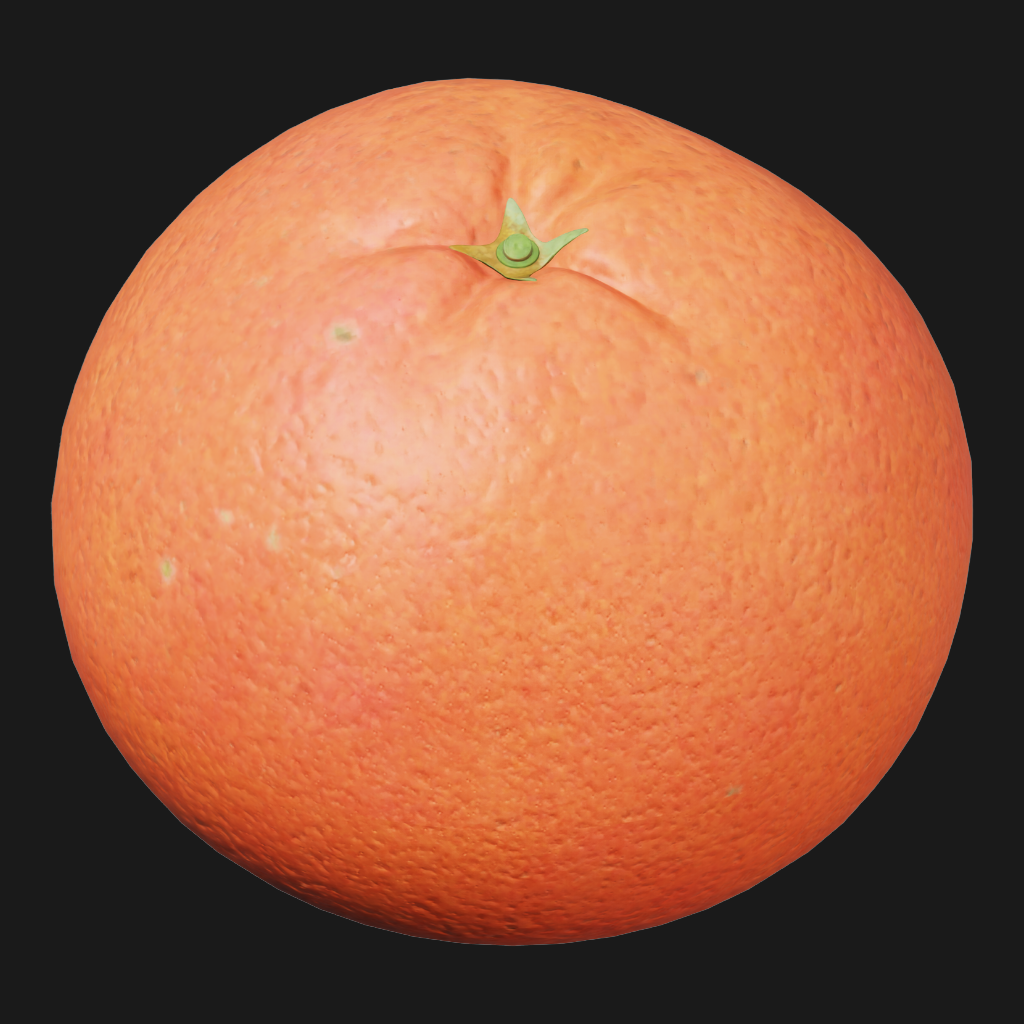
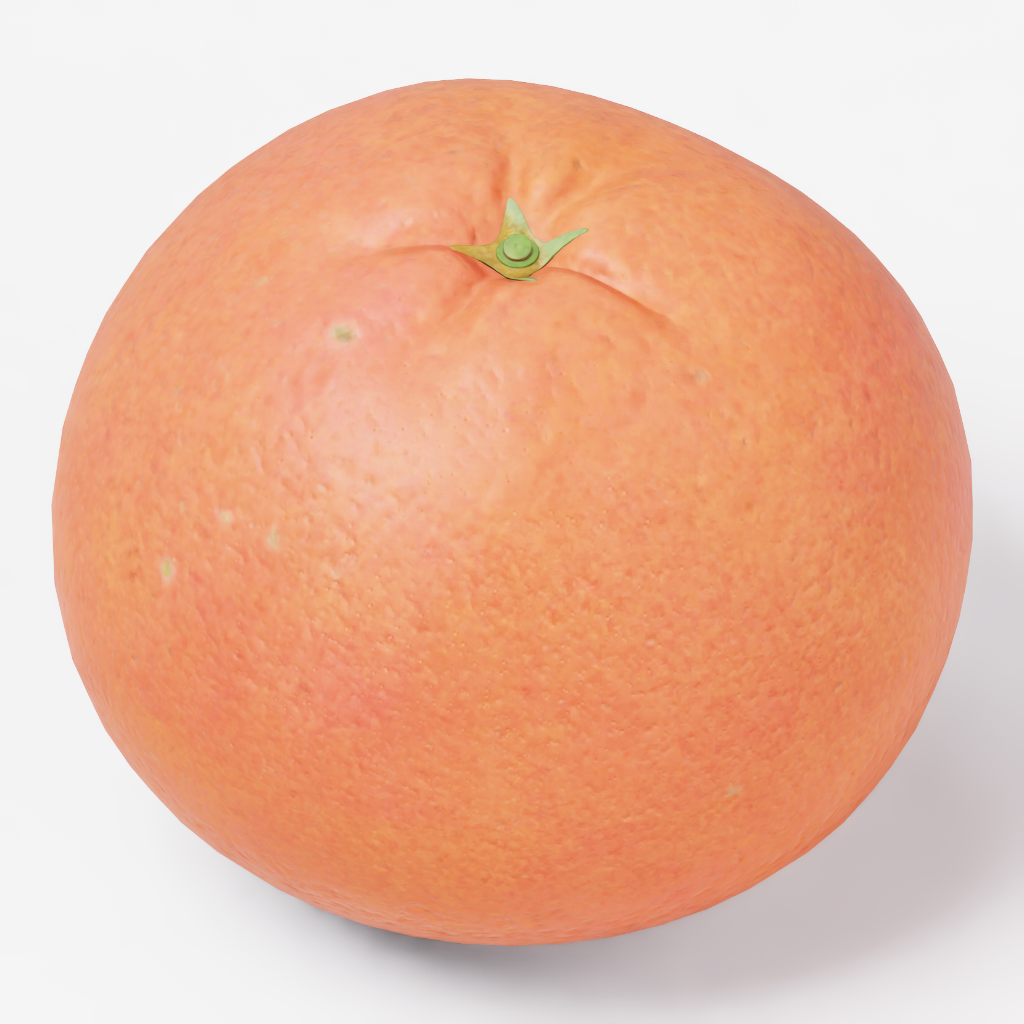
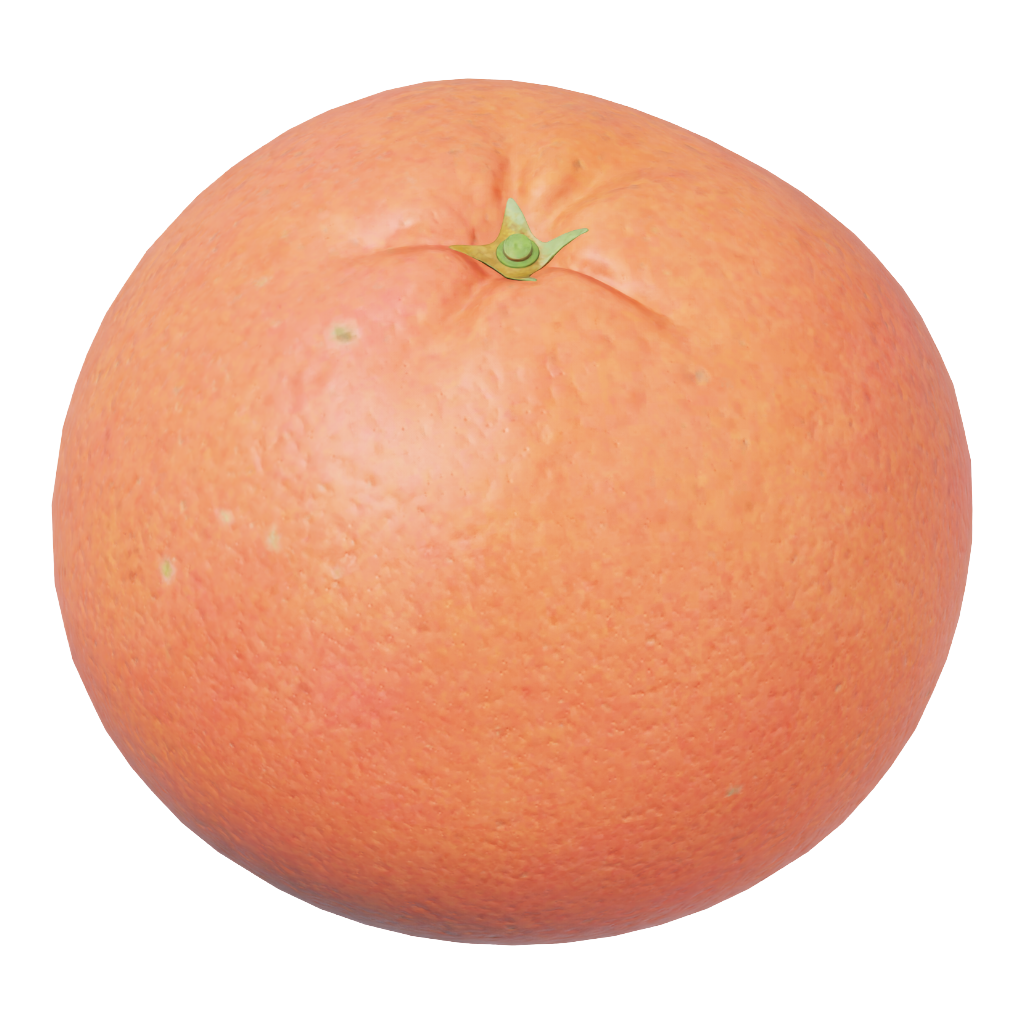
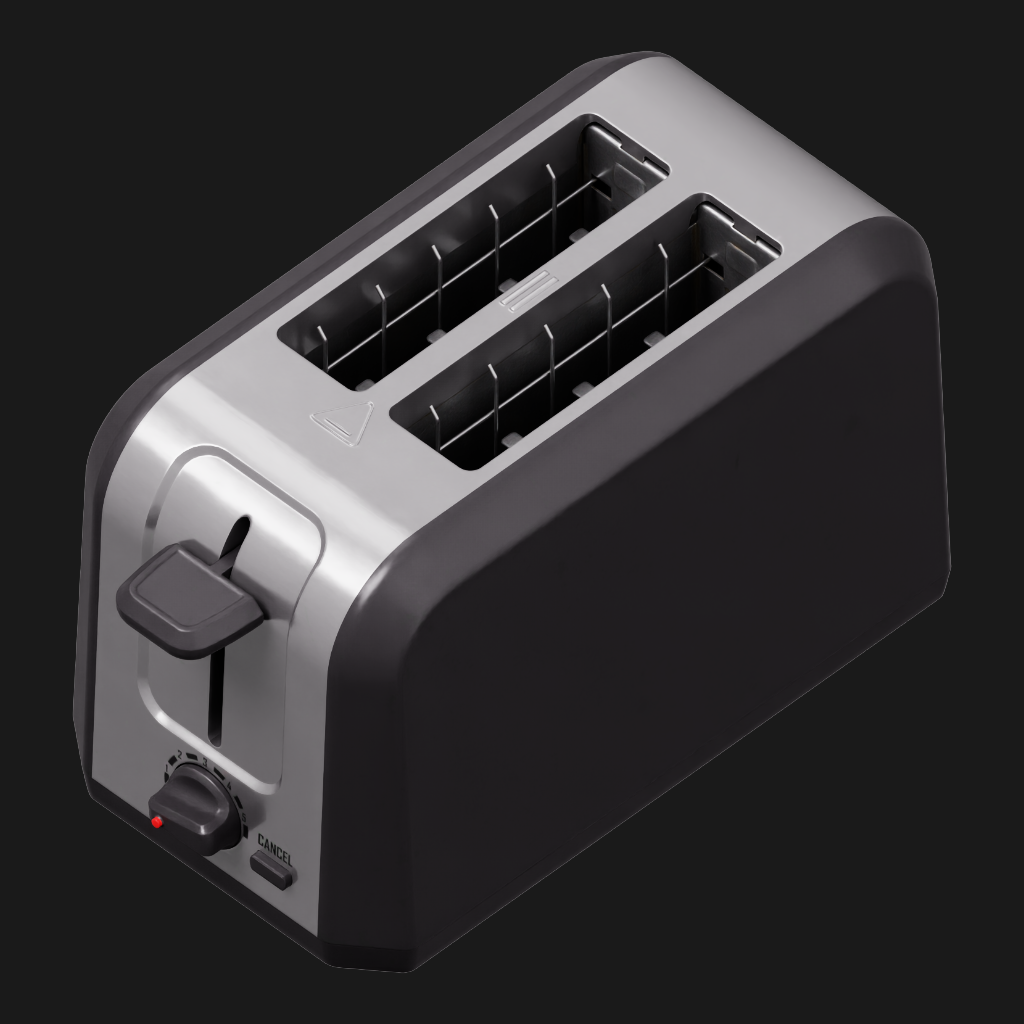
The toaster sample is another example of orthographic three-quarter framing that communicates the asset’s overall form and functional details:
Dark |
Light |
Transparent |
|---|---|---|
|
|
|
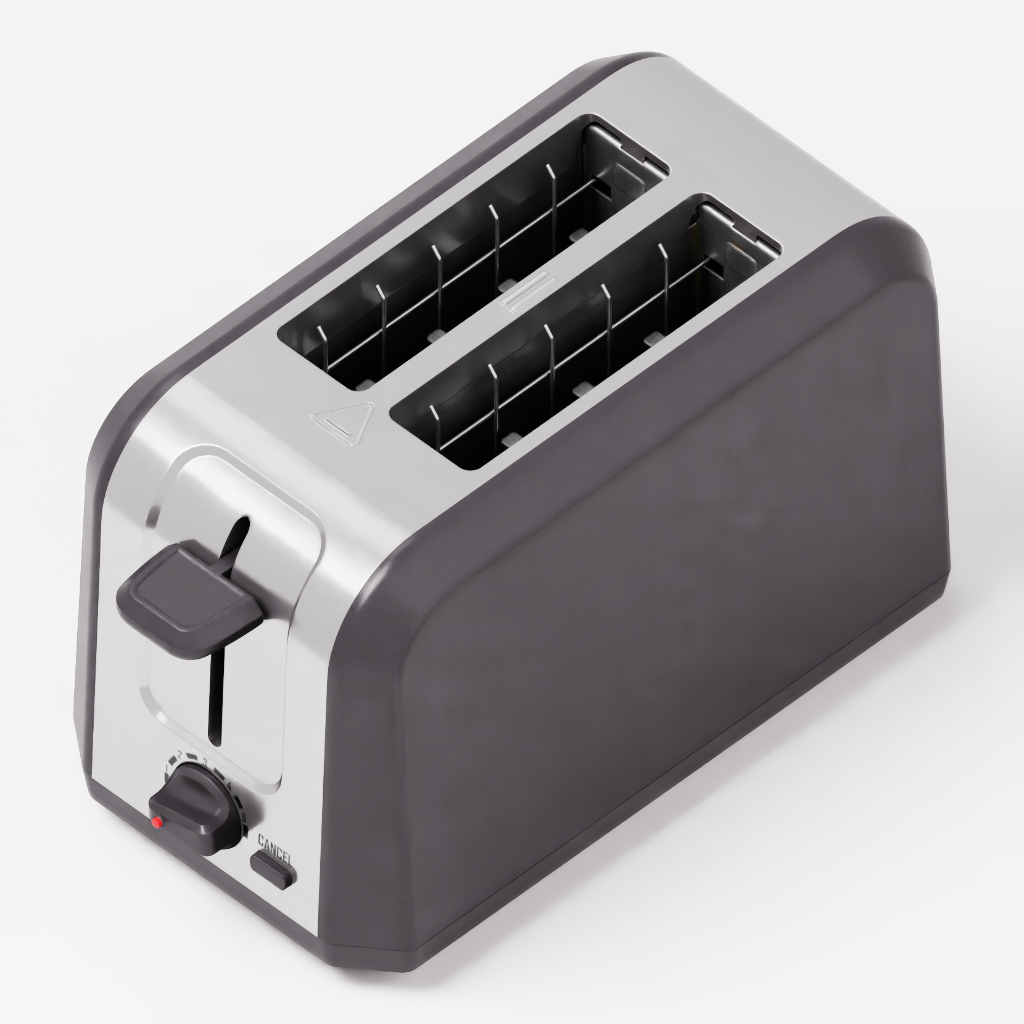
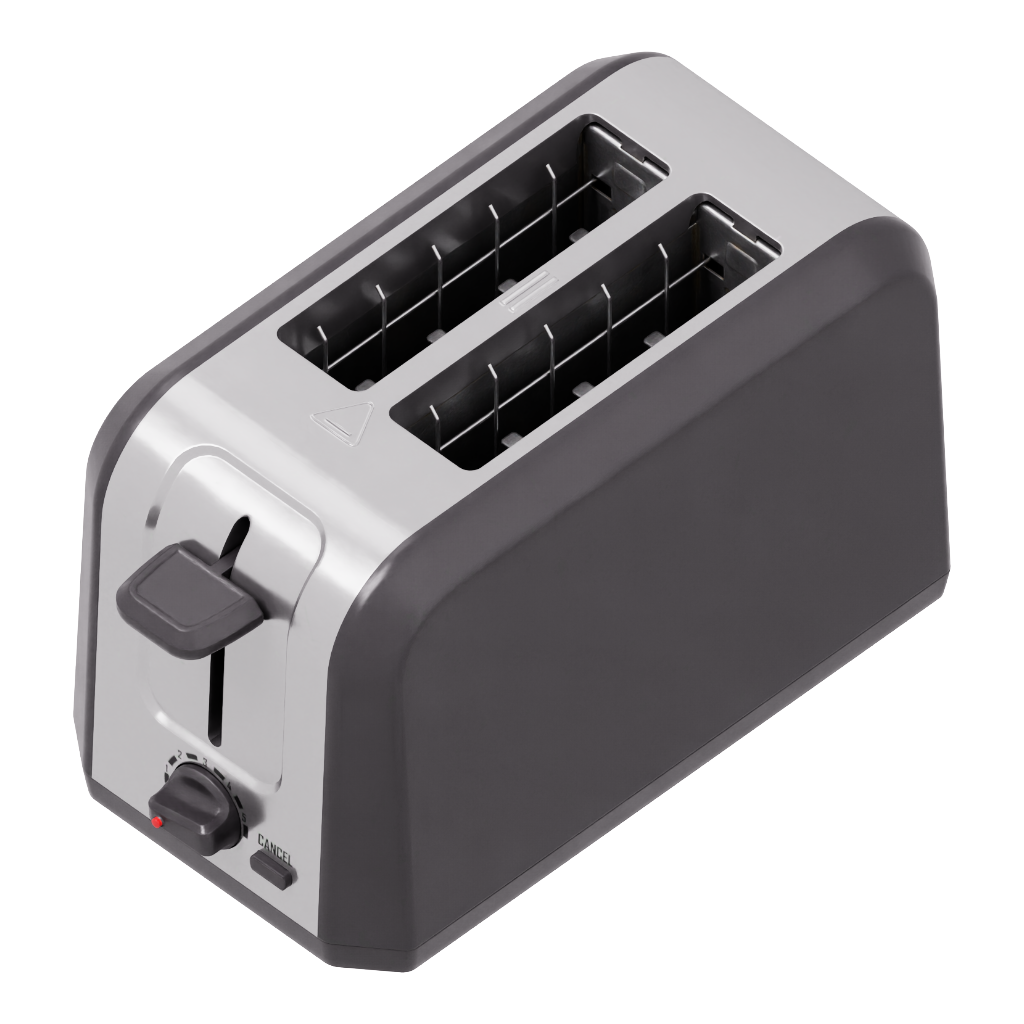
Dark, light, and transparent variants allow a browser to select an image for
its current theme. They do not replace the canonical
.thumbs/256x256/<asset-file>.png required by SR.002. Select the most
representative variant for that canonical path and retain additional variants
according to the destination library’s naming and delivery policy.
Lighting and color#
Use even illumination with soft shadows.
Use neutral daylight lighting at 6500 K with a D65 white point.
Render in Linear sRGB and tone-map the output to display sRGB.
Avoid clipped highlights, crushed shadows, and colored lighting that changes the perceived material.
Keep lighting and renderer settings consistent within an asset class.
Use RTX for robot thumbnails and other asset classes whose pipeline requires RTX. Do not mix Blender, RTX Real-Time, and RTX Path Tracing output within one asset class unless the visual differences have been reviewed and accepted.
Rendering and delivery#
Render a square high-resolution source at 1024x1024 or 512x512, then
downsample it to the required 256x256 delivery image. Use these source
settings as a reproducible quality target:
PNG, RGBA, 8 bits per channel
512 samples per pixel for path tracing, or the maximum-quality RTX Real-Time preset
Denoising enabled
Ray depth: 6 diffuse, 8 specular, and 6 transmission bounces
Motion blur disabled
Depth of field disabled
Use the same renderer for all thumbnails in a given asset class. Generate all background variants from the same camera, asset state, lighting arrangement, and renderer configuration.
Review checklist#
Before delivery, confirm:
The canonical thumbnail exists at
.thumbs/256x256/<asset-file>.png.The complete asset is visible and recognizable at
256x256.The object occupies roughly 80% or more of the limiting dimension.
The projection is orthographic and the viewpoint communicates the shape.
Lighting is neutral, even, and free of distracting hard shadows.
No grid, UI, labels, or thumbnail-only overlays are visible.
The PNG has the expected dimensions and alpha channel.
Theme variants, when delivered, use the same framing and render settings.
The renderer is consistent with other thumbnails in the asset class.
Validation boundary#
FET_033_STANDARD combines thumbnail
presence with SimReady provenance metadata. Its thumbnail rule is
SR.002.
Passing SR.002 proves that the canonical thumbnail file is present; visual
quality and consistency still require review against this guide.