
Single Node Training#
This tutorial walks you through running a neural network training job on a single node with OSMO. You will learn the basics of launching your training script, selecting resources, managing data and monitoring training progress using TensorBoard or Weights & Biases.
The complete workflow example is available here .
Launching a Training Script in a Workflow#
Suppose you have a training script train.py ready to use.
Use the files field in your task spec to include the script in your workflow as a local file.
Then you can launch the training script in your entry script:
tasks:
- name: train
  image: nvcr.io/nvidia/pytorch:24.03-py3
  command: ["/bin/bash"]
  args: ["/tmp/entry.sh"]
  files:
  - path: /tmp/train.py
    localpath: train.py  # (1)
  - path: /tmp/entry.sh
    contents: |
      set -ex

      # Directory of training inputs
      INPUT_DIR="./data"

      # Directory to store training outputs
      OUTPUT_DIR="{{output}}/experiments"
      mkdir -p $OUTPUT_DIR

      # Launch training
      python3 /tmp/train.py --save-model \
        --dataset-path $INPUT_DIR \
        --tensorboard-log-dir $OUTPUT_DIR/logs \
        --checkpoint-dir $OUTPUT_DIR/checkpoints \
        --model-save-path $OUTPUT_DIR/models
Include the training script as a local file.
Selecting Resources#
Use the resources field in your workflow spec to select the appropriate resources for your task.
Based on your training script and available resources, use one or more GPUs.
resources:
  default:
    gpu: 1 # (1)
    cpu: 4
    memory: 10Gi
    storage: 30Gi
You can change the number of GPUs to request based on your training script and available resources.
Preparing Training Data#
The above example training script will download the public MNIST dataset if not already exists.
If you want to use your own data as training input,
you can use the inputs field in your task spec to input it as an OSMO dataset.
Then the input dataset can be referenced in the training script as {{input:0}}:
tasks:
- name: train
  inputs:
  - dataset:
    name: <my-training-data>
  files:
  - path: /tmp/entry.sh
    contents: |
      INPUT_DIR="{{input:0}}/<my-training-data>"  # (1)

      # ...
Directory of training inputs
Note
Refer to Data to create a data credential to manage your datasets.
Saving Training Results#
To save the trained model as an OSMO dataset, use the outputs field in your task spec:
tasks:
- name: train
  outputs:
  - dataset:
      name: my-trained-model
      path: experiments/models
If your training is time consuming and you want to checkpoint intermediate results as the training progresses,
use the checkpoint field in your task spec:
tasks:
- name: train
  checkpoint:
  - path: experiments/checkpoints  # (1)
    url: s3://my-bucket/my-folder
    frequency: 10s
    regex: .*.pth  # (2)
The local path of the checkpoints
Regex for files to checkpoint
Monitoring Training Progress#
Weights and Biases
If you want to use Weights and Biases to manage your training process,
setup your API key by running the following command and replacing <YOUR_API_KEY> with your key:
$ osmo credential set wandb --type GENERIC --payload wandb_api_key=<YOUR_API_KEY>
Then you can include this credential in your task spec and login with it in your entry script:
tasks:
- name: train
  credentials:
    wandb:
      WANDB_API_KEY: wandb_api_key
  files:
  - path: /tmp/entry.sh
    contents: |
      # ...

      pip install wandb==0.19.6
      wandb login $WANDB_API_KEY

      # Launch training
TensorBoard
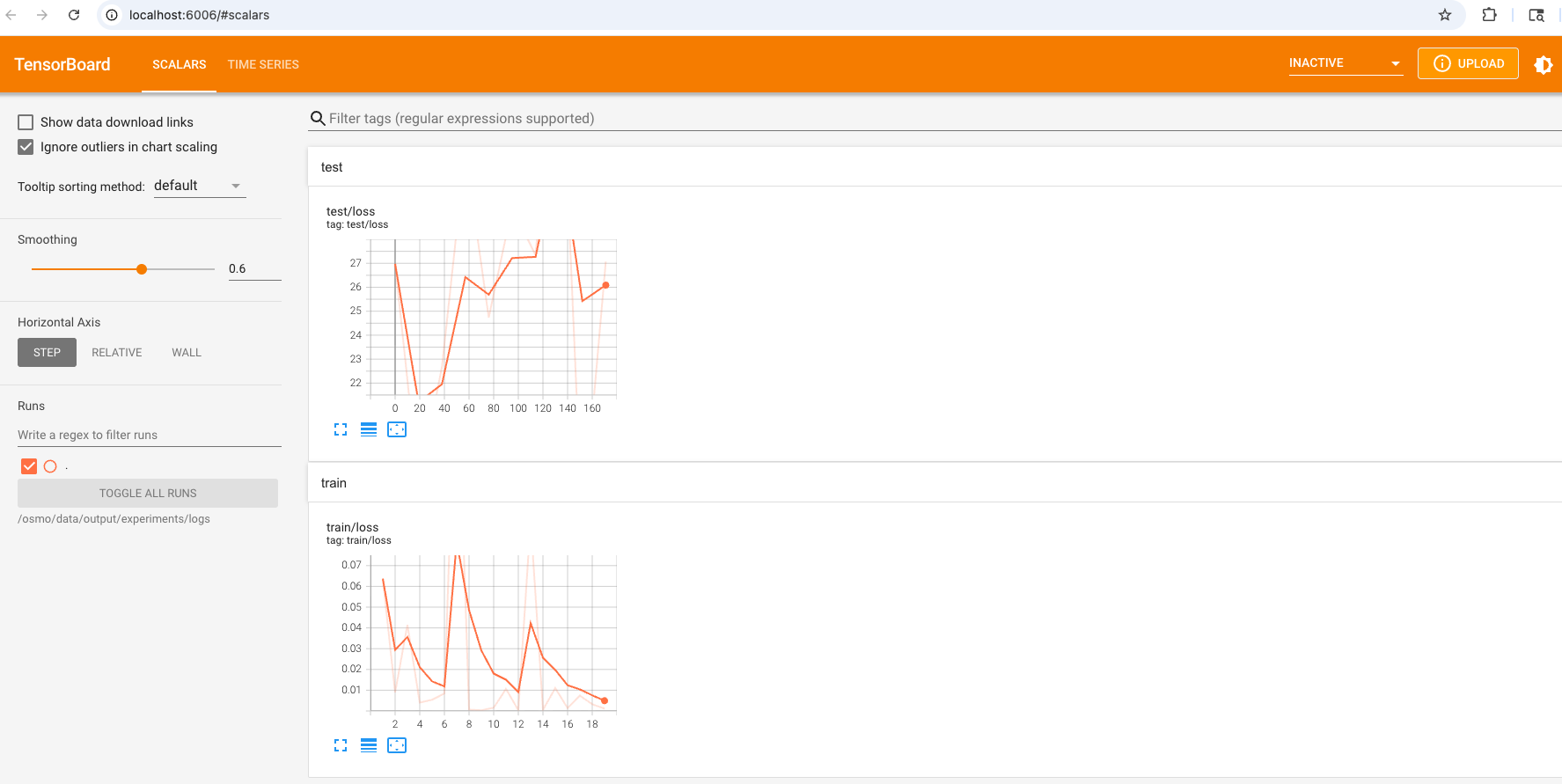
If you want to use TensorBoard for monitoring your training progress, you can start it before launching the training script and stop it after the training is done.
tasks:
- name: train
  files:
  - path: /tmp/entry.sh
    contents: |
      # ...

      # Launch TensorBoard
      tensorboard --logdir $OUTPUT_DIR/logs &
      TENSORBOARD_PID=$!

      # Launch training

      # Kill TensorBoard when training is done
      kill $TENSORBOARD_PID || true
Note
If you launch TensorBoard in the same task as the training script, you need to stop it at the end so that the task can finish.
When the task is running, you can run the port-forward command to forward the TensorBoard to your local port:
$ osmo workflow port-forward <workflow ID> train --port 6006
Open your browser and visit http://localhost:6006 to see the TensorBoard: