
Port-Forward#
You can port-forward from a running task in the workflow through the CLI or the browser.
CLI#
Forward ports from a running task of your workflow to your local host or browser using port-forward command.
For detailed CLI options, see osmo workflow port-forward.
If your workflow is hosting a web application that listens on a single port, you can go to the URL provided after running port forwarding to view the application through your web browser. If your workflow is hosting a more complex service like Isaac Sim, you can need to use the a corresponding local client to access the service.
Example
$ osmo workflow port-forward wf-1 webserver --port 9000:9000
Starting port forwarding from wf-1/webserver to 9000. Please visit http://localhost:9000 if a web application is hosted by the task.
To stop the port forwarding, simply hit Ctrl+C in the port-forwarding terminal.
Browser#
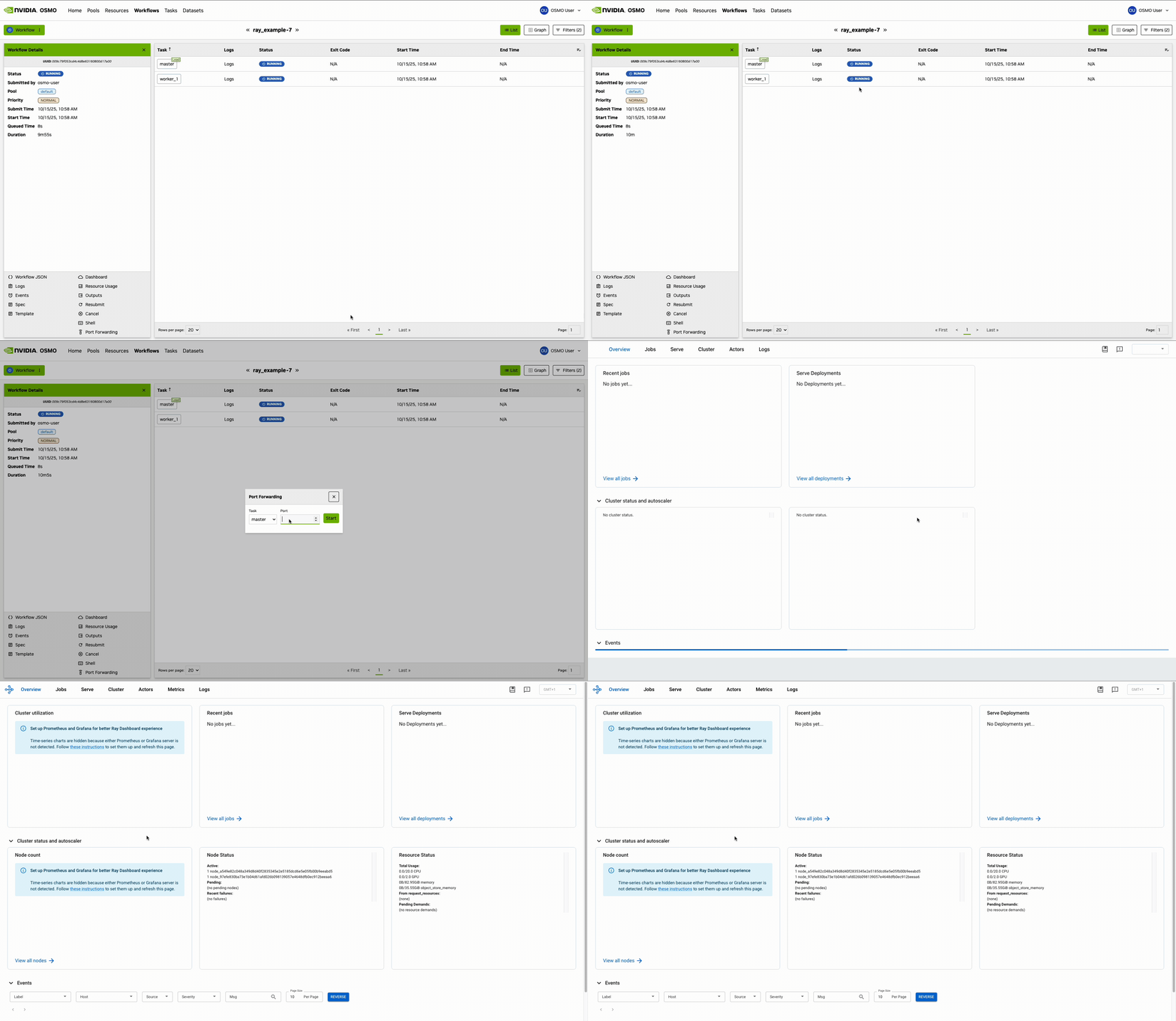
Forwarding a port through the browser is useful when your task has a web service running that listens on a single port and serves http traffic, such as a Jupyter Notebook , a VSCode Server or a Ray dashboard .
You can forward a port from a running workflow task in the browser using the Port Forward
option in the Task Details menu for that task. You may select the task, enter the port number
and click on Start to forward the port. The port number should be the port of the web service running in the task.
Note
The browser port-forward feature may be disabled by administrators. In such case you will not see the option to forward ports for a running task.