
Exec#
There are two methods of opening a shell into a running task in the workflow - through the CLI or the browser.
CLI#
You can open a shell into a running task in the workflow using the exec command.
For detailed CLI options, see osmo workflow exec.
By default, osmo workflow exec will connect to the container using the /bin/bash shell.
You can terminate a session by either using CTRL+D or by using the exit command:
$ osmo workflow exec my-workflow-t4tpwhegz5a5nli7jkfo7h24um task1
root@task1-t4tpwhegz5a5nli7jkfo7h24um:/# echo Hello from inside task1!
Hello from inside task1!
root@task1-t4tpwhegz5a5nli7jkfo7h24um:/# exit
$
Use the --keep-alive flag to resume the shell if connection is lost:
$ osmo workflow exec my-workflow-t4tpwhegz5a5nli7jkfo7h24um task1 --keep-alive
root@d1f013e8308f45a88bd8f894202c7faf:/# echo Hello from inside task1!
Hello from inside task1!
root@d1f013e8308f45a88bd8f894202c7faf:/#
Connection Closed: received 1012 (service restart); then sent 1012 (service restart)
Reconnecting to the exec session...
root@d1f013e8308f45a88bd8f894202c7faf:/#
Use an alternative shell like sh, or even an alternative executable with the --entry command-line argument:
$ osmo workflow exec my-workflow-t4tpwhegz5a5nli7jkfo7h24um task1 --entry /bin/sh
root:# echo Hello from inside task1!
Hello from inside task1!
root:# exit
$
Execute a Non-Interactive Command#
Note
--entry is a string that can be executed as an entry point for a shell.
It can be a single command, or a command with arguments.
For example:
$ osmo workflow exec my-workflow-t4tpwhegz5a5nli7jkfo7h24um task1 --entry ls
$ osmo workflow exec my-workflow-t4tpwhegz5a5nli7jkfo7h24um task1 --entry "ls -l"
$ osmo workflow exec my-workflow-t4tpwhegz5a5nli7jkfo7h24um task1 --entry "bash -c \"cd examples && ls\""
Note
With --keep-alive flag, when the connection is lost, the exec command will be restarted and re-executed.
Send Exec Command to All Running Tasks in a Group#
You can send a command to all running tasks in a group by using the --group command-line argument:
$ osmo workflow query wf-32
Workflow ID : wf-32
Status      : RUNNING

Task Name   Start Time               Status
============================================
tcp         Apr 11, 2025 14:31 PDT   RUNNING
udp         Apr 11, 2025 14:31 PDT   RUNNING
$
$ osmo workflow exec wf-32 --group echo --entry hostname
[udp] 3c7dec70b09f46769a31903c6612829c
[tcp] d3c1c69f36464075977fc147d76e3472
Note
The --group argument does not support interactive entry commands like /bin/bash or --keep-alive flag.
Browser#
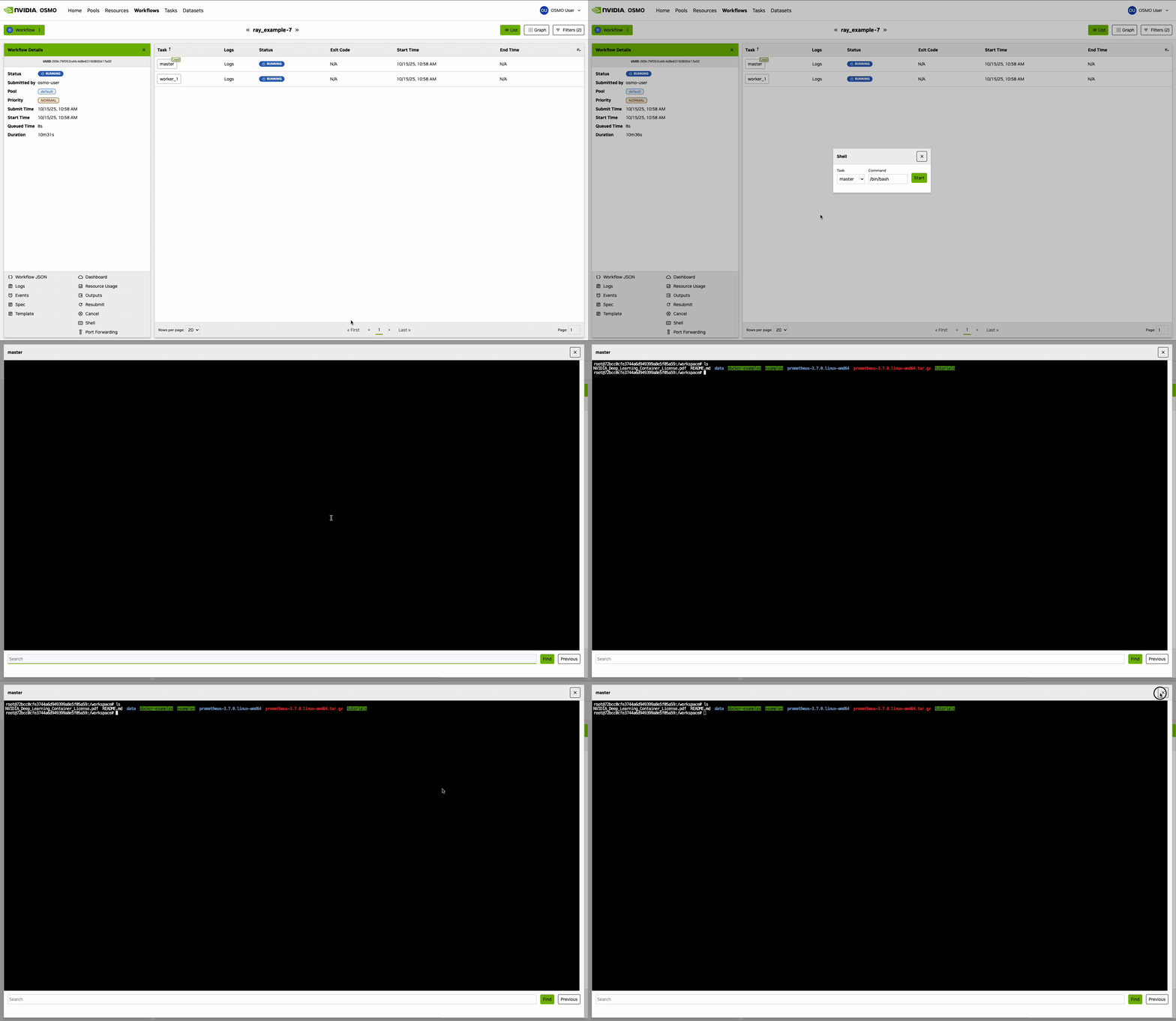
You can exec into running workflow tasks in the browser by clicking on the task name from
the workflow details page to see the actions menu and selecting the Shell option.
Switch between tasks using the handy dropdown menu at the top of the shell.
Search inside the shell using Ctrl+F (Cmd+F on Mac).